
Can Files Be Recovered From An Unallocated Partition?
Finding that an entire partition has suddenly changed to “Unallocated Space” can be extremely concerning, especially when the drive contains important business documents, photographs, databases, project files, videos, or other irreplaceable information. Windows may show the partition as missing even though the physical drive is still connected and recognized by the computer. In many situations, […]
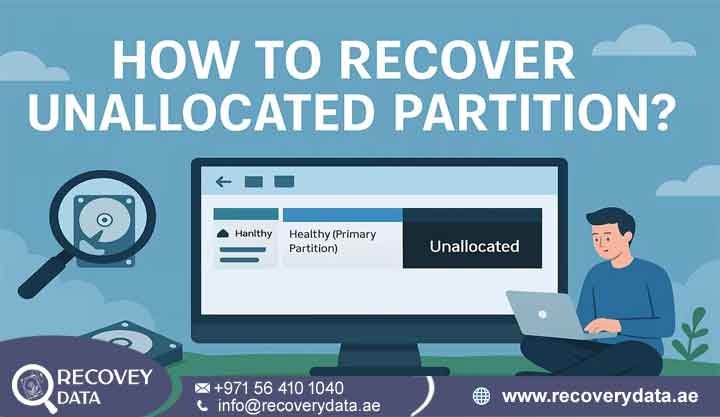
Finding that an entire partition has suddenly changed to “Unallocated Space” can be extremely concerning, especially when the drive contains important business documents, photographs, databases, project files, videos, or other irreplaceable information. Windows may show the partition as missing even though the physical drive is still connected and recognized by the computer. In many situations, this does not mean that your files have been permanently deleted. The good news is that files can often be recovered from an unallocated partition, particularly when the underlying data has not been overwritten. An unallocated partition usually indicates that the operating system can no longer identify or access the partition structure correctly. The information that tells Windows where the partition starts, where it ends, and which file system it uses may have become corrupted, deleted, or disconnected from the actual data.
This situation can occur after accidental partition deletion, operating system installation, disk management errors, sudden power failures, partition table corruption, malware activity, hardware problems, or failed system updates. In some cases, the partition disappears without any obvious warning. The most important factor is what happens after the partition becomes unallocated. If you continue using the drive, create a new partition, format it, install software, or copy new files onto it, the operating system may begin writing data over areas that previously contained your files. Once those sectors are overwritten, recovery can become significantly more difficult and, in some cases, impossible. For this reason, the safest approach is to stop using the affected drive and determine whether the problem is logical, physical, or related to the storage device’s firmware.
Quick Answer: Yes, Files Can Be Recovered
Seeing unallocated space in Windows Disk Management does not automatically mean that your files have been erased. When a partition becomes unallocated, Windows simply no longer recognizes that portion of the storage device as an active partition. The partition entry, file-system metadata, or partition boundaries may have been damaged or removed while large portions of the original data remain physically present on the drive. Think of the partition structure as a map that tells the operating system where your files are located. If that map disappears, the operating system may not know how to reach the files. However, the underlying sectors containing the actual information may still exist.
For example, a 1 TB hard drive containing several hundred gigabytes of photographs and business documents could suddenly appear as completely unallocated after partition corruption. This does not necessarily mean that the hundreds of gigabytes of files have disappeared. A professional recovery process may be able to reconstruct the missing partition information and restore access to the original file system. The recovery outcome depends on several factors, including how the partition became unallocated, whether new information has been written to the drive, the condition of the file system, the health of the storage device, and whether the device uses HDD or SSD technology.
Why Does a Partition Become Unallocated?
There are several reasons why a previously accessible partition can suddenly appear as unallocated. Understanding the cause is important because different causes require different recovery methods.
Partition Table Corruption
Partition tables contain important information about the partitions stored on a drive. A corrupted MBR (Master Boot Record) or GPT (GUID Partition Table) can prevent Windows from identifying an existing partition correctly. Unexpected shutdowns, power interruptions, firmware problems, software errors, or damaged sectors in critical disk areas can contribute to partition table corruption. In these situations, the actual file data may remain intact even though Windows can no longer locate the partition.
Accidental Partition Deletion
A partition can also become unallocated after accidental deletion through Windows Disk Management, third-party partition management software, or during an operating system installation. This is particularly common when users are attempting to resize, merge, format, or create partitions and select the wrong volume. If no substantial data has been written to the newly unallocated area, partition recovery may still be possible.
Failed Windows Installation or Upgrade
Operating system installations and major upgrades can sometimes modify partition structures. If an installation fails or the wrong disk is selected during setup, an existing partition may become inaccessible or appear as unallocated. This is especially concerning when the drive contains files that were not backed up before the installation process began.
Sudden Power Failure
Unexpected power loss can interrupt critical disk operations. If the system was updating partition information or writing file-system metadata when the power failed, the resulting structure may become inconsistent. Although a power failure does not automatically erase every file, it can leave the partition in a condition where Windows cannot interpret it correctly.
Malware or Ransomware Activity
Certain forms of malware can interfere with disk structures, system partitions, or file-system metadata. Ransomware generally focuses on encrypting files, but other malicious activity can also damage or modify disk structures. If the drive became unallocated after a suspected malware incident, it is better to avoid repeatedly connecting and modifying the drive until its condition has been assessed.
Bad Sectors and Hardware Wear
Aging hard drives can develop bad sectors. If important partition or file-system metadata is located in damaged sectors, the operating system may fail to recognize the partition correctly. Physical degradation can also cause repeated read errors, freezing, extremely slow performance, or intermittent detection. These symptoms require greater caution because repeated scanning can place additional stress on a failing drive.
The Golden Rule of Unallocated Partition Recovery
Stop writing data to the affected drive immediately.
This is one of the most important steps you can take after discovering an unallocated partition. Do not create a new partition simply because Windows recommends it. Do not format the drive because Windows displays a formatting prompt. Avoid installing recovery software directly onto the affected disk, and never save recovered files back to the same storage device. If the drive is an external HDD or SSD, disconnect it safely and avoid unnecessary use. If it contains your operating system, shut the computer down rather than continuing to boot from it repeatedly. Every additional write operation can potentially overwrite information that recovery specialists need to reconstruct your original partition and files.
How Data Survives in Unallocated Disk Space
To understand why recovery can be possible, it helps to understand the difference between partition information, file-system information, and actual file data. A storage device does not simply store files as visible folders. It uses several layers of information to organize those files. Partition structures define where volumes are located. File systems such as NTFS, FAT32, or exFAT organize files and directories within those volumes. If the partition information becomes damaged, Windows may lose access to the volume even though the underlying sectors still contain information. In simple terms, the directory structure may become inaccessible while the actual file content remains on the storage media. This is why specialized recovery tools and professional laboratories can sometimes recover files from a partition that Windows identifies as unallocated.
Understanding File Systems and Partition Tables
Windows commonly works with file systems such as NTFS, FAT32, and exFAT. These file systems maintain structures that help the operating system identify files, folders, timestamps, file locations, and available storage space. Partition tables work at another level. They tell the operating system how the storage device is divided into logical sections. When a partition table becomes damaged, the operating system may display the affected area as unallocated. However, the original file system and file data may still exist beyond the damaged metadata. Recovery specialists can examine the drive at a lower level than normal Windows tools. They may analyze partition boundaries, file-system structures, boot sectors, metadata, and other information to determine how the original volume was organized.
File System Reconstruction vs. Raw Data Carving
The recovery method depends heavily on how much of the original file-system structure remains.
File System Reconstruction
When sufficient file-system information remains intact, specialists may be able to reconstruct the original partition without relying entirely on raw file scanning. This approach can provide a much better recovery result because it may preserve the original folder structure, file names, directory hierarchy, timestamps, and other metadata. For business users, this can be particularly valuable because recovering thousands of documents without their original organization can make the recovered data difficult to use.
Raw Data Carving
If the file system is severely damaged or missing, recovery specialists may use raw data carving. This process examines the storage medium at a lower level and searches for recognizable file signatures. Different file types have characteristic structures that can help identify them. For example, recovery software may identify patterns associated with JPEG photographs, PDF documents, Microsoft Office files, video files, databases, and other formats. However, raw carving has limitations. It may recover the file contents without restoring the original file names or folder hierarchy. Fragmented files can also be more difficult to reconstruct correctly.
Step-by-Step Guide: How to Recover Files From an Unallocated Partition
Phase 1: Check the Drive Without Modifying It
Windows users can open Disk Management by entering. Check how the affected drive appears. It may be displayed as: Unallocated, RAW, Not Initialized, or another abnormal state. The most important point is not to click Format, Initialize Disk, or New Simple Volume simply because Windows recommends those options. These operations can modify the drive and potentially make recovery more complicated.
Phase 2: Determine Whether the Drive Is Healthy
Before performing extensive recovery scans, determine whether the storage device is physically healthy. A drive that is detected normally and operates without unusual symptoms may have a logical problem. However, a drive that repeatedly disconnects, freezes the computer, produces clicking sounds, becomes extremely slow, or is not detected consistently may have an underlying hardware problem. A failing drive should generally be cloned or imaged using appropriate professional equipment before extensive recovery attempts.
Phase 3: Create a Sector-Level Image When Necessary
For an unstable or physically failing drive, working directly on the original media can be risky. A professional recovery laboratory may first create a sector-by-sector image or clone onto a healthy storage device. Recovery work can then be performed on the copy rather than repeatedly stressing the original drive. This approach helps protect the original evidence and reduces the risk of further deterioration.
Phase 4: Analyze the Lost Partition Structure
Specialized recovery tools can search for previous partition boundaries and file-system structures. If the original partition information can be identified, recovery specialists may reconstruct the partition structure and attempt to restore the original directory hierarchy.
Phase 5: Scan for Recoverable Files
If reconstruction is not possible, a deeper scan can search the unallocated area for recognizable file-system structures and file signatures. The scan may identify documents, photographs, videos, databases, archives, emails, and other file types.
Phase 6: Preview and Verify the Data
Finding a file during a recovery scan does not always mean that the file is completely intact. Files should be previewed and checked for corruption before recovery is considered successful. Important business files should be opened and verified where possible.
Phase 7: Save the Recovered Files to a Different Drive
Never save recovered information back onto the original unallocated partition. Recovered files should be stored on a separate healthy drive with sufficient capacity. This prevents the recovery process from overwriting additional data that may still be recoverable.
Special Scenarios: SSDs, RAW Disks, and Deleted Partitions
Different storage technologies require different recovery strategies. A recovery method that works well for an HDD may not produce the same result on an SSD.
Unallocated SSD Data Recovery and the TRIM Command
SSD recovery can be more complicated because modern SSDs commonly use TRIM and internal garbage-collection processes. When the operating system identifies blocks as no longer required, the SSD may process those blocks internally. Once the underlying NAND data has been cleared or made inaccessible through these processes, traditional software recovery may not be able to retrieve it. This means that time can be particularly important after accidental partition deletion on an SSD. Avoid continuing to use the SSD, reinstalling Windows, downloading applications, or copying files to it. If the lost information is important, professional assessment should be considered before further changes are made.
Recovering Lost Partition Data From RAW Disks
A RAW disk or RAW partition is another common situation. Windows may report that the drive needs to be formatted before it can be used. Although the message can appear convincing, formatting should not be treated as a normal repair solution when important files are missing. The RAW condition may indicate damaged file-system metadata rather than complete data loss. A recovery specialist can examine the underlying storage structure to determine whether the original file system and files remain recoverable.
Restoring Files After Accidental Partition Deletion
If a partition was accidentally deleted, recovery may still be possible if the space has not been reused.Specialized partition recovery software can search for remnants of the previous partition structure and identify the original boundaries. In favorable cases, the original partition can be reconstructed with much of its directory structure intact. The situation becomes more complicated if a new partition was created over the same area or if a new operating system was installed afterward.
Can Files Be Recovered After Creating a New Partition?
Potentially, yes, but the chances depend on what happened after the original partition disappeared. Creating a new partition may write new partition and file-system metadata to the drive. If the new volume is then formatted and used, additional information can be written across the same physical areas that previously contained the lost files. The more the drive is used after partition loss, the greater the possibility of overwriting recoverable information. For this reason, stop using the drive as soon as you notice that the original partition has disappeared.
Can Files Be Recovered After Formatting an Unallocated Partition?
Recovery may still be possible after a quick format, depending on the storage technology, formatting method, amount of subsequent usage, and condition of the original data. However, formatting changes the file-system structures and can overwrite important metadata. Continued use after formatting increases the risk of permanent data loss. SSD storage can present additional challenges because TRIM and garbage collection may reduce recoverability.
When to Use a Professional Partition Recovery Service in the UAE
Software-based recovery can be appropriate for certain logical problems, particularly when the storage device is healthy and the partition structure has simply been damaged or deleted. However, professional assistance becomes much more important when the drive shows signs of physical failure, severe corruption, firmware problems, or repeated read errors.
Signs of Logical Corruption
A logical recovery situation may involve:
The drive is detected normally in Windows.
A partition suddenly appears as unallocated.
The partition disappeared after accidental deletion.
The drive became unallocated after an operating system update.
Files became inaccessible without unusual mechanical sounds.
Windows detects the drive but cannot identify the original file system.
These symptoms may indicate that the underlying hardware remains functional while the logical structure has been damaged.
Signs of Physical Drive Failure
Physical failure requires greater caution. Clicking, grinding, repeated ticking, overheating, disappearing from BIOS/UEFI, freezing the computer when connected, or extremely slow read speeds can indicate hardware problems. Mechanical HDDs can experience issues involving heads, platters, spindle motors, or PCBs. SSDs can experience controller, NAND, firmware, or electronic failures. If the drive produces unusual noises or repeatedly disconnects, avoid repeated attempts to access it.
Secure Professional Recovery in Dubai, Abu Dhabi, and Across the UAE
When a storage device has suffered physical damage, professional recovery may require specialized diagnostic equipment, controlled handling, compatible replacement components, and, for certain HDD procedures, a suitable cleanroom environment. Opening a mechanical hard drive outside an appropriate controlled environment can expose the platters to contaminants. Even microscopic particles can interfere with the drive’s delicate surfaces and heads. For customers across Dubai, Abu Dhabi, Sharjah, Ajman, Umm Al Quwain, Ras Al Khaimah, and Fujairah, Recovery Data provides professional data recovery assistance for hard drives, SSDs, external drives, USB devices, memory cards, RAID systems, NAS devices, and other storage media.
The recovery process should begin with an assessment rather than immediately attempting repairs or formatting. This helps determine whether the problem is related to partition corruption, file-system damage, physical failure, firmware issues, or another underlying cause. For business customers, confidentiality and secure handling are also important. Sensitive documents, financial records, customer information, databases, and corporate archives should be handled through controlled recovery procedures.
Frequently Asked Questions (FAQ)
Can data be recovered from a failed hard drive showing unallocated space?
Yes, recovery can be possible when a hard drive shows unallocated space. If the problem is caused by partition-table corruption or another logical issue, the original files may remain intact. If the drive also has physical damage, specialized hardware recovery may be required.
Is unallocated space the same as deleted data?
No. Unallocated space means that the operating system does not currently recognize that area as belonging to an active partition. Files previously stored there may still exist until their underlying sectors are overwritten.
Can I format an unallocated partition without losing data?
You should not format an unallocated area if you are trying to recover existing files. Creating and formatting a new volume can write new structures to the drive and may reduce the chances of successful recovery.
Can files be recovered after accidentally deleting a partition?
In many cases, yes. If the deleted partition has not been overwritten, specialized recovery tools may locate its previous boundaries and reconstruct the file system.
Can an SSD recover an unallocated partition?
SSD recovery is possible in some situations, but it can be more complicated than HDD recovery. TRIM, garbage collection, controller behavior, and continued use can affect the availability of the original data.
Should I initialize a disk that suddenly shows as unallocated?
If the disk contains important files, avoid initializing it before determining why it became unallocated. Initialization can modify critical disk structures and may complicate subsequent recovery.
How much does data recovery cost in Dubai?
The cost depends on the type of storage device, extent of damage, recovery complexity, required equipment, and amount of recoverable data. A simple logical partition recovery can require a very different process from a physically damaged HDD, SSD, RAID system, or NAS.
How long does unallocated partition recovery take?
Recovery time varies according to the drive capacity, condition, scanning requirements, and type of failure. A straightforward logical recovery may be completed faster than a physically damaged drive requiring imaging, component work, or advanced laboratory procedures.
What Should You Do If Your Partition Suddenly Becomes Unallocated?
The most important thing is to avoid making the situation worse. Instead, disconnect the affected storage device when practical and seek an assessment before making changes. The sooner the drive is protected from additional writes, the better the opportunity to preserve whatever data remains recoverable.
Secure Professional Assistance
An unallocated partition can look like a complete data loss situation, but the appearance of unallocated space does not automatically mean that your files are gone. In many cases, the original data remains on the storage device while the partition structure or file-system information has become inaccessible. The recovery process should focus on preserving the original data first, identifying the underlying cause, and then choosing the appropriate recovery method. Logical partition reconstruction, file-system recovery, sector-level imaging, and raw data carving may all play a role depending on the condition of the drive.
If you are dealing with an inaccessible partition, deleted volume, RAW disk, corrupted partition table, or suspected hardware failure, avoid experimenting with formatting or unverified recovery utilities.
Contact Recovery Data for professional data recovery assistance and an assessment of your affected storage device.
Email: info@recoverydata.ae
Phone: +971 56 410 1040

