
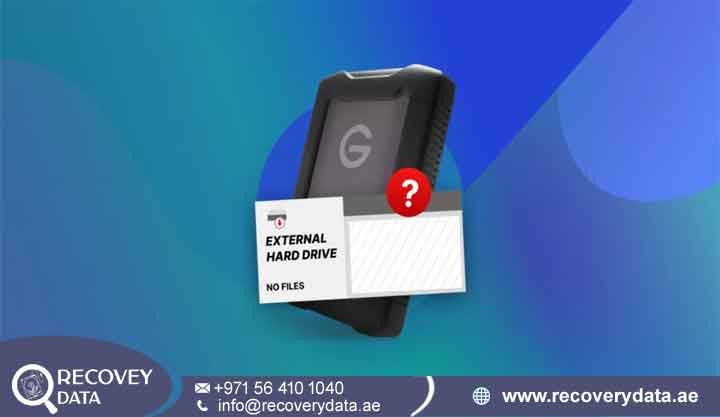
Discovering that your hard drive is not showing files can trigger immediate panic. This becomes especially stressful when personal memories, financial records, or critical business databases seem to have vanished. One common situation occurs when the drive properties still show significant used storage space. However, Windows File Explorer or macOS Finder shows no folders or files.
At Recovery Data, we handle this situation regularly for clients across the UAE. The problem can affect internal desktop hard drives, portable storage devices, and external hard drives. A computer may detect the drive while failing to display its contents. Understanding the cause helps protect the remaining data and guides the recovery process. Our Dubai facility uses advanced file system reconstruction, sector-level imaging, and secure handling procedures. Our specialists work to recover inaccessible files while protecting the integrity of the original storage media.
The Technical Reality of Invisible Files: Why Your Hard Drive Shows Used Space But No Files
A drive can show used storage space while displaying empty folders or a blank directory window. This situation does not always mean that the operating system deleted your files. In many cases, the data remains on the storage media. However, the operating system loses access to the structures that identify and organize those files. File system corruption, altered attributes, partition problems, or damaged directory information can cause this issue.
Common Causes of Disappearing Files and Folders
Attribute Alteration (Hidden Files): Malware, trojans, or accidental terminal commands can change file attributes. These changes may mark folders as hidden or system files. Windows can then hide the affected items from normal File Explorer views.
Master File Table (MFT) Corruption: NTFS uses the MFT as a central record of files and folders. The MFT stores important information about where files exist on the drive. Damage to MFT sectors can prevent Windows from locating the affected files. Unsafe ejection, sudden power loss, and bad sectors can contribute to MFT corruption. The files may remain on the drive even when Windows cannot display them.
Accidental Partition Table Shifts: Incorrect partitioning can change important partition information. Interrupted operating system updates can also affect partition structures. Sudden interruptions during file transfers may create similar problems. These changes can cause Windows to display a drive as RAW or unallocated. The data may still exist even though the operating system cannot access the original folder structure.
File Allocation Table (FAT/exFAT) Damage: External drives often use FAT32 or exFAT for cross-platform compatibility. Damage to allocation tables can disconnect directory entries from their associated data clusters. The drive may continue to show used space. However, Windows or macOS may fail to display the original files and folders.
Logical Corruption vs. Physical Hard Drive Failure
You should distinguish logical problems from physical hardware failures before attempting recovery. Logical corruption affects file systems, allocation tables, partition structures, and directory indexes. The physical storage components may still function normally. Physical failure affects actual hardware components. These components can include read/write heads, spindle motors, controller boards, NAND flash chips, or other internal electronics. Pay close attention to unusual sounds. Clicking, grinding, buzzing, repeated spinning, or sudden disconnections can indicate physical damage. A physically failing drive requires extra caution. Recovery software can place additional stress on damaged hardware. Automated repair commands can also modify important file system structures. If the drive produces unusual sounds, stop using it immediately. Continued operation can worsen the damage and reduce the chances of successful recovery.
Immediate Steps: What to Do (And What to Avoid)
When files suddenly disappear, your first actions matter. Avoid changing the affected drive until you understand the problem. Do not format the drive. Do not install software on it. Do not save new files to it. Avoid repair commands unless you have confirmed that the drive remains healthy and you have a reliable backup. New writes can overwrite information that recovery specialists may need. This risk becomes higher when deleted files, damaged partitions, or corrupted file systems already exist.
Safe Checks for External Hard Drives in Dubai
Try an Alternative Port or Cable: A damaged USB port or faulty cable can interrupt communication with an external hard drive. USB hubs can also cause connection problems. Connect the drive directly to another USB port. If possible, use a known-good cable. This simple test can help identify an external connection problem without modifying the drive.
Inspect Disk Management: Windows users can open Disk Management to check how the computer recognizes the drive. Mac users can use Disk Utility for a similar check. If Windows identifies the drive as RAW, do not format it when the system displays a formatting prompt. A RAW status can indicate serious file system or partition corruption. Formatting can change important file system structures. It can also make later recovery more complicated.
Check Hidden File Settings: Some missing files may still exist but remain hidden because of changed attributes or system settings. In Windows File Explorer, open the View settings and select Show hidden files, folders, and drives. You can also review the protected operating system file setting. If the files remain invisible after these basic checks, avoid making further changes to the drive.
Dangerous Mistakes That Cause Permanent Data Loss
Running CHKDSK on a Corrupted Drive: CHKDSK can help maintain healthy drives with minor file system problems. However, you should not run it casually when important files have already disappeared. CHKDSK can modify file system structures while attempting repairs. A severely corrupted drive may contain damaged indexes, directory records, or allocation information. A physically failing drive presents an even greater concern. Continuous read activity can increase stress on failing heads or unstable sectors. For valuable data, create a professional recovery image before attempting major repairs.
Writing New Data to the Drive: Avoid downloading software, moving files, installing applications, or saving documents to the affected drive. Every new write can overwrite sectors that previously contained deleted or inaccessible information. The operating system may consider those sectors available for new data. This can permanently reduce recovery possibilities.
Unprofessional DIY Software Overuse: Avoid repeatedly scanning the same damaged drive with multiple recovery applications. Some programs can create temporary data or modify file system information. Repeated scanning can also increase mechanical stress when the drive already has physical problems. If the missing files contain important business records, photographs, databases, or documents, stop experimenting with recovery software.
Professional Hard Drive Not Showing Files Recovery Services in Dubai
When basic checks fail, professional laboratory recovery can provide a safer approach. Complex cases require specialized imaging hardware, recovery software, and file system expertise. Professional recovery teams first determine whether the problem involves logical corruption, physical damage, or a combination of both.
RAW Hard Drive Recovery and File System Repair
A RAW volume means that Windows or macOS cannot correctly identify the drive’s file system. The operating system may fail to recognize NTFS, FAT32, exFAT, or another existing structure. Our technicians first assess the condition of the storage media. When the drive remains stable, they can create a sector-by-sector image using professional recovery equipment. The imaging process focuses on capturing readable information while reducing unnecessary stress on the original device. After imaging, specialists analyze the recovered sectors. They identify file signatures, directory structures, allocation information, and other logical data. The team can then reconstruct folders and extract recoverable files to a separate healthy destination drive.
Partition Table and MFT Reconstruction
Partition problems can make an entire volume disappear. Windows may show the affected area as unallocated space or fail to display the original partition. Our engineers analyze partition headers, signatures, file system structures, and available metadata. They can reconstruct damaged partition information when sufficient data remains. For NTFS drives, specialists can also analyze and reconstruct damaged MFT structures. This process can help restore original folder names, file names, and directory relationships. The recovery outcome depends on the extent of the damage and whether new data has overwritten the original structures.
Devices We Recover Across the UAE
Different storage technologies require different recovery techniques. Our Dubai facility handles a broad range of storage devices.
External Hard Drives: We recover data from portable and desktop external drives from manufacturers such as Seagate, Western Digital, Toshiba, and LaCie. These cases can involve USB connection problems, file system corruption, partition damage, bad sectors, accidental formatting, and mechanical failure.
Internal HDDs and SSDs: Our recovery services cover SATA HDDs, SATA SSDs, NVMe drives, M.2 SSDs, and PCIe storage devices. These drives can come from desktop computers, laptops, gaming systems, workstations, and other systems.
RAID, NAS, and Enterprise Servers: We also handle complex storage systems that use RAID configurations such as RAID 0, RAID 1, RAID 5, RAID 6, and RAID 10. These systems can experience controller failures, multiple drive failures, accidental rebuilds, file system corruption, and configuration problems.
Understanding Data Recovery Workflows and Cleanroom Standards
Storage devices with physical damage require controlled handling. Advanced laboratory equipment becomes especially important when the drive cannot perform normal read operations.
Why Cleanroom Handling Matters
Hard drives contain extremely sensitive internal components. Their read/write heads operate extremely close to the magnetic platters. Dust and airborne contaminants can interfere with these components. Opening a mechanically damaged hard drive in an ordinary room can therefore increase contamination risks. Our specialists use a controlled Class 100 Cleanroom environment when a case requires internal hard drive access. This environment helps limit airborne particles during mechanical intervention. Depending on the diagnosis, specialists may replace damaged read/write heads, address spindle motor problems, or repair electronic components.
Initial Consultation and Intake
The recovery process begins with a detailed assessment. Our engineers review the symptoms and failure history. They also consider possible causes such as accidental drops, liquid exposure, overheating, power fluctuations, sudden shutdowns, and prolonged mechanical wear. This information helps the team select the safest recovery approach.
Class 100 Cleanroom Intervention
When a mechanical hard drive requires internal access, our specialists handle it inside a controlled Class 100 Cleanroom environment. Depending on the failure, the recovery process may involve read/write head replacement, spindle motor intervention, or electronic component repair. Engineers perform these procedures only when the diagnosis indicates that internal intervention can improve access to the stored data.
Forensic Bit-Level Imaging
After stabilizing the device, engineers create a hardware-level or forensic image whenever possible. The team works from the image rather than repeatedly operating on the original drive. This approach reduces unnecessary stress on the damaged storage media. Specialized imaging systems can handle unstable sectors, communication errors, and degraded areas more effectively than standard operating-system copying tools.
Logical Reconstruction
After imaging, engineers analyze the captured information. They reconstruct the logical structures needed to locate the client’s files. The process can include rebuilding file allocation tables and analyzing damaged MFT (Master File Table) structures Specialists may also reconstruct directory information and identify fragmented files. After extraction, the team checks recovered files for consistency and integrity. The recovered data then moves to a separate healthy storage device.
Frequently Asked Questions About Missing Hard Drive Files
Why does my external hard drive show as empty even though the space is used?
This problem often occurs when the file system, allocation tables, or MFT becomes corrupted. Unsafe ejection, sudden power loss, malware, and bad sectors can contribute to the problem. The original data may still exist on the storage media. However, the operating system may lose the information it needs to locate and display those files.
Can I recover files if my hard drive turned into RAW format?
Yes, RAW drives can often undergo professional data recovery. A RAW status means that Windows or macOS cannot correctly identify the existing file system. Specialists can analyze the drive at a lower level. They can search for file system structures and recover identifiable data when the underlying sectors remain readable. Do not format the drive before attempting recovery. Formatting can change important structures and complicate the recovery process.
Is it safe to run CHKDSK when my hard drive is not displaying folders?
You should avoid CHKDSK when valuable files have disappeared and you have not created a backup or recovery image. CHKDSK attempts to repair file system problems. During that process, it can modify directory entries, allocation information, and other structures. If the drive has physical damage, repeated operations can also place additional stress on the hardware.
How much does data recovery cost in Dubai?
Data recovery costs depend on several factors. These include the storage device type, capacity, failure type, damage level, and required recovery method. Logical file system corruption usually requires a different process from mechanical failure. A physically damaged hard drive may require cleanroom intervention and specialized hardware. At Recovery Data, we evaluate the device first. We then provide a transparent quotation based on the diagnosed problem and required recovery work.
How long does the data recovery process take?
Standard evaluations typically take around 24 to 48 hours. The complete recovery time depends on the condition of the storage media and the complexity of the case. Severe MFT corruption, extensive bad sectors, unstable hardware, or mechanical damage can require additional time. Some critical business cases may qualify for emergency recovery options in Dubai.
Can deleted or formatted partitions be fully restored?
Recovery may be possible when the original data has not been overwritten. Specialists can analyze the drive for previous partition structures and remaining file system information. They may reconstruct the original directory layout when enough metadata remains. However, no recovery process can guarantee complete restoration in every case. The amount of overwritten data and the condition of the storage media directly affect the outcome.
Secure Data Recovery Lab in Dubai Book Your Free Diagnosis
If your computer detects the hard drive but your files, folders, or partitions do not appear, avoid risky repair attempts. Do not format the drive. Do not save new data to it. Do not repeatedly run recovery software. Professional assessment can help determine whether the problem involves hidden files, file system corruption, partition damage, bad sectors, or physical hardware failure. Entrust important storage media to specialists who understand both file system structures and storage hardware.
Contact Recovery Data for a professional data recovery assessment.
Email: info@recoverydata.ae
Phone: +971 56 410 1040
Location: Dubai, UAE