
Recover Deleted Files From External Hard Drive
Realizing that important documents, treasured photo collections, business records, financial files, or critical project archives have suddenly disappeared from an external hard drive can cause immediate panic. External hard drives give users convenient storage for large amounts of personal and professional information. They also make it easy to move files between computers and locations. However, […]
Realizing that important documents, treasured photo collections, business records, financial files, or critical project archives have suddenly disappeared from an external hard drive can cause immediate panic. External hard drives give users convenient storage for large amounts of personal and professional information. They also make it easy to move files between computers and locations. However, several problems can make that information inaccessible without warning. Accidental deletion, formatting, file-system corruption, malware, improper ejection, power interruptions, damaged partitions, and physical drive failures can all lead to data loss.
The good news is that deleting a file does not always destroy its underlying data immediately. In many cases, the operating system removes the reference that points to the file and marks its storage space as available for future use. The original data may remain in those sectors until another file overwrites them. This creates an opportunity for external hard drive data recovery at Recovery Data. The chances of recovery depend heavily on what happens after deletion. This comprehensive guide explains how file deletion works, what you should do immediately after losing data, how to safely use data recovery software, how to approach permanently deleted file recovery, and when professional external hard drive recovery offers a safer solution.
How External Hard Drive Data Recovery Works Behind the Scenes
To understand how to recover files from an external hard drive, it helps to understand what happens when you create, modify, and delete a file. An external hard drive does not simply store information inside visible folders. The operating system uses a file system such as NTFS, exFAT, FAT32, HFS+, or another supported structure to organize data across thousands or millions of storage blocks.
When you save a document, photograph, video, database, or project archive, the operating system records several details. These details can include the file name, size, timestamps, location, and storage clusters that contain the actual data. When you delete the file, the operating system usually changes the file-system information instead of immediately removing every piece of binary data. The system then marks the related storage space as available for future use.
This process explains why many external HDD file recovery operations can succeed after accidental deletion. The deleted information may remain on the drive until new data replaces it. Recovery software can sometimes locate those remaining data structures and reconstruct the original files. However, the recovery process becomes more difficult when the drive receives new data after deletion.
Every new download, document, photograph, application, or video can occupy storage sectors that previously contained deleted information. Once another file overwrites those sectors, conventional deleted file recovery may no longer recover the original content. Several other factors also influence the result. These include the file system, the drive’s physical condition, file fragmentation, the amount of new data written after deletion, and the type of files you want to recover.
What Happens When You Delete a File from an External Hard Drive?
When users delete a file, they often assume that the computer immediately removes its contents from the physical disk. The process usually works differently. The operating system changes the file-system information and marks the storage space as available for future use. The original data can remain in those sectors until another operation overwrites them. This explains why users can sometimes recover deleted files from external hard drive devices even after they empty the Recycle Bin or Trash. However, deletion does not guarantee recovery. Continued use of the drive can replace the deleted information with new data. Fragmentation can create another challenge because one file may occupy multiple storage areas. The recovery process therefore focuses on preserving the original storage state. If you discover that you deleted important files, stop using the external hard drive as soon as possible. Avoid copying new files to it. Do not install applications on it. Also, avoid unnecessary repair operations that could modify the file system.
Golden Rules Before Attempting External Hard Drive Recovery
Before downloading recovery software or running command-line utilities, follow several important precautions. Stop writing data immediately: Do not save new documents, download files, install applications, or copy folders to the affected external drive. Every new write operation can potentially overwrite deleted information.
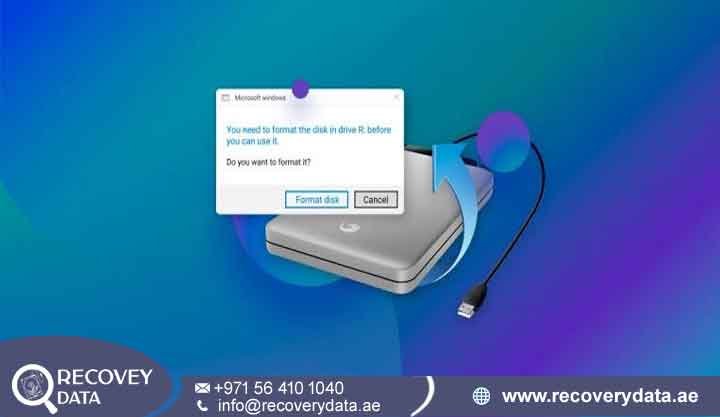
Do not format the drive: Windows may display a message saying that the drive needs formatting before you can use it. Cancel that message if you need the existing files. Formatting can change important file-system structures and complicate later recovery.
Do not create a new partition: Creating a new partition can modify the partition table and other storage structures. Avoid making changes until you understand the condition of the drive.
Do not run unnecessary repair commands: Utilities such as file-system repair tools can modify information on the original drive. If your main goal involves data recovery, focus on preserving the existing data before attempting repairs.
Do not save recovered files to the same drive: Always export recovered files to another healthy storage device. Saving recovered information to the affected drive can overwrite other files that you still need to recover.
Do not repeatedly power-cycle a failing drive: If the device produces clicking, grinding, scraping, or repeated spin-up sounds, disconnect it. Repeated power cycles can place additional stress on a mechanically damaged drive.
Step-by-Step Methods to Recover Deleted Files from an External Hard Drive
Step 1: Check the Recycle Bin or Trash
Before using advanced data recovery software, check the normal deletion locations on your computer. Depending on your operating system and configuration, deleted files may remain available through the Recycle Bin or Trash. Connect the external hard drive carefully and check these locations before starting an advanced scan. If you find the missing files there, restore them to a different location when possible. This approach avoids unnecessary scanning and reduces the risk of modifying the affected drive.
If the files no longer appear in the Recycle Bin or Trash, do not assume that the data has disappeared permanently. Emptying these locations usually removes the normal reference to the deleted files. Some of the original information may still remain on the storage device. That situation creates a potential opportunity for external drive data recovery, provided the drive has not overwritten the relevant sectors.
Step 2: Check Previous Versions and Backup Copies
Before attempting complicated recovery procedures, check whether another copy of the missing information already exists. Windows users can check File History, Previous Versions, Windows Backup, or other configured backup solutions. Mac users can check Time Machine and other backup applications. Businesses should also check NAS backups, cloud storage, server backups, offline archives, and other storage locations. A working backup can restore important files without placing additional stress on the affected external hard drive. However, check how your backup system handles deleted files. Some synchronization services can copy deletions across connected devices. A versioned backup usually provides better protection because it keeps previous versions of files.
Step 3: Use Native Recovery Utilities Carefully
If your files do not appear in the Recycle Bin and no backup exists, native recovery utilities can provide another option. Windows users can use Microsoft’s Windows File Recovery utility for certain deletion scenarios. The correct command depends on the file system and the type of data loss. Mac users can also use available recovery and backup tools through Terminal or other system utilities. However, command-line recovery requires caution when the drive shows signs of instability. A failing external HDD may disconnect during scanning. It may also become extremely slow or cause the computer to freeze. Unusual clicking or grinding sounds can indicate mechanical problems. In these situations, avoid prolonged scans on the original device. Creating a safe image first can provide a more controlled path for external hard drive file recovery.
Step 4: Use Reputable Data Recovery Software
When native recovery tools cannot locate your files, specialized data recovery software may help. Applications such as Disk Drill, Recuva, and Stellar can handle many logical recovery scenarios. These tools can scan file-system structures and, in some cases, search storage sectors for recognizable file signatures. Install the recovery application on your computer’s internal drive or another healthy storage device. Never install it on the external HDD that contains the deleted files. Connect the affected drive and allow the software to identify it.
Many recovery applications provide options such as Quick Scan, Deep Scan, Partition Recovery, and File Signature Recovery. Start with the least intensive suitable scan. If that scan cannot locate your files, you can consider a deeper scan. Large external hard drives may require significant time to scan. The software may need to examine millions of storage blocks. Avoid disconnecting the device while the scan runs. Once the software displays the results, preview the files whenever possible. This helps you determine whether the recovered files remain usable. Finally, save the recovered information to another healthy storage device. Never send recovered files back to the original external HDD.
How to Recover Permanently Deleted Files from an External Hard Drive
Files deleted, removed from the Recycle Bin, or deleted through another permanent-deletion process can sometimes remain recoverable. The operating system may remove the normal file-system reference while leaving portions of the original data on the physical storage sectors. Permanently deleted file recovery software can search for remaining file-system information and recognizable file signatures. These signatures can help recovery applications identify specific file types even when the original file name or folder structure no longer exists. This method works best when the drive has received little or no new data after deletion. If you continue using the external HDD, new files may occupy the sectors that contain your deleted information. Overwriting can permanently destroy portions of the original file. For this reason, stop using the external drive immediately after accidental deletion.
How to Recover Deleted Photos from an External Hard Drive
art=”11817″>ata-end=”12088″>Photographs rank among the most common files that users need to recover from external storage. Family photographs, wedding collections, travel images, professional photography projects, and business marketing assets can represent years of irreplaceable memories and work. To recover deleted photos from an external hard drive, recovery software can search for remaining file-system records and recognizable image signatures. Common formats such as JPEG, PNG, TIFF, and RAW camera files may remain recoverable even when the original folders no longer appear. However, fragmented photographs can create additional challenges. A single image may occupy several different storage locations. If another file overwrites one of those locations, the recovered image may appear incomplete or corrupted. Heavy drive usage after deletion can also reduce recovery results. If the photographs hold significant personal or business value, avoid testing several recovery programs on the original drive. A professional hard drive data recovery laboratory can assess the drive and determine a safer recovery method.
How to Recover Deleted Videos from an External Hard Drive
Video recovery can require more analysis than document recovery because video files often occupy large amounts of storage space. A single video may use thousands or even millions of storage clusters. Formats such as MP4, MOV, AVI, and MKV can remain recoverable when enough of the original data survives. Fragmentation can make video recovery more challenging. A basic file-carving process may identify the beginning of a video but fail to reconstruct the complete file. The recovered video may appear in the results but fail during playback. Advanced video data recovery can involve deeper analysis of the file structure and available data fragments. This process can prove especially important for CCTV footage, professional video projects, surveillance recordings, training material, and large media archives. If the external hard drive has also developed physical problems, stop using it. A professional recovery service can assess the hardware before attempting further extraction.
How to Recover Deleted Documents from an External Hard Drive
Business documents, spreadsheets, PDFs, presentations, invoices, contracts, databases, and project files can often remain recoverable when their original storage sectors remain intact. However, serious file system corruption can remove access to original file names and folder structures. Recovery software may then display generic file names or group recovered files according to their file types. Some documents may also contain damaged sections if the drive has overwritten part of the original data. For important business information, avoid editing or overwriting the original external drive. Export recovered documents to another storage device and check each file there. If the drive contains thousands of important business files, professional external hard drive recovery services can provide a more controlled recovery process.
How to Recover a Formatted External Hard Drive
Accidentally formatting an external hard drive does not always destroy every previous file. In some cases, especially after a quick format, portions of the original file-system information and file data may remain on the storage device. Recovery software can scan the underlying storage blocks and search for remnants of previous files. However, the result depends on several factors. These include the type of format, the file system, the amount of new data written afterward, and the physical condition of the drive. A secure erase or full overwrite can make recovery extremely difficult. Heavy use after formatting can also overwrite the previous information. If you accidentally formatted an external HDD, stop using it immediately. Do not create new partitions. Do not download files. Avoid installing applications on the formatted drive. If the missing information has high value, consider professional formatted hard drive recovery before making further changes.
How to Recover a Corrupted External Hard Drive
Sometimes users have not actually deleted their files. Instead, the computer can no longer correctly understand the existing file-system structure. Windows may display messages such as “Drive needs to be formatted,” “Location is not available,” or “The parameter is incorrect.” Other cases involve an external hard drive appearing in Disk Management or Disk Utility but showing an incorrect capacity or an unknown file system. These symptoms can indicate partition-table problems, file system corruption, damaged metadata, connection problems, or an underlying hardware failure.
If the information is important, avoid immediately running aggressive repair commands. Some repair utilities can modify the original file system. Those changes may complicate subsequent hard drive data recovery. A safer professional approach may involve creating a sector-by-sector image of the device first. Recovery specialists can then work with the image instead of repeatedly modifying the original drive.
What to Do When an External Hard Drive Is Not Detected
An external hard drive that does not appear in File Explorer may have a simple connection problem. It can also indicate serious hardware failure. Start with basic checks such as the USB cable, power adapter, USB port, docking station, and external enclosure. If possible, test the device with a known-good cable and compatible port. Avoid repeatedly reconnecting the drive if it behaves abnormally. If Disk Management or Disk Utility recognizes the device but you cannot open the volume, the issue may involve the partition structure or file system. A completely undetected drive may have problems with the USB bridge board, PCB, power circuitry, firmware, motor, read/write heads, or internal storage components. Do not initialize or format the device simply because Windows or macOS cannot read it.
External Hard Drive Making Clicking or Grinding Noises
An external hard drive making clicking noise can indicate a serious mechanical problem. Healthy mechanical HDDs can produce soft operational sounds, but repeated clicking, rhythmic knocking, grinding, scraping, or repeated spin-up and spin-down behavior requires caution. These symptoms can point to problems involving the read/write heads, spindle motor, actuator assembly, firmware, or platter surface. Software cannot repair a physically damaged mechanical component. If the drive contains important data, disconnect it and avoid repeatedly turning it on. Each additional power cycle can increase stress on a damaged mechanism. A professional hard drive recovery service can inspect the drive and determine the safest recovery approach.
When to Consult a Professional External Hard Drive Recovery Service
Software recovery works best when the external hard drive remains physically healthy. Logical problems such as accidental deletion, some partition issues, and certain forms of file-system corruption may respond well to recovery software. Physical failures require a different approach. Warning signs include clicking hard drive, grinding sounds, repeated disconnections, severe overheating, visible physical damage, liquid exposure, power-related failure, incorrect drive capacity, firmware problems, or a drive that freezes the computer.
In these situations, repeatedly running consumer recovery software may not improve the situation. It can also place additional stress on an unstable device. A professional external hard drive recovery service can diagnose the problem before choosing a recovery method. Specialized recovery engineers can determine whether the failure involves the logical structure, electronics, firmware, mechanical components, or storage media. They can then choose an appropriate procedure to protect the original information and recover as much usable data as possible. For users in Dubai and across the UAE who need professional assistance, you can learn more about professional data recovery services in Dubai and available recovery solutions before deciding whether to attempt further DIY recovery.
Why You Should Not Open a Damaged External Hard Drive at Home
Opening a traditional mechanical hard disk outside a controlled environment can expose sensitive internal components to dust and other contaminants. HDD platters and read/write heads operate with extremely small tolerances. Even tiny particles can create problems when they enter the internal mechanism. Replacing internal components also requires more than finding another drive that looks similar. Recovery engineers may need to match the drive family, firmware information, head assembly, PCB characteristics, calibration data, and other device-specific details. For this reason, users should not open a physically damaged external HDD at home. If the drive contains irreplaceable photographs, business records, databases, or project archives, professional physical hard drive recovery offers a safer approach.
External Hard Drive Recovery for Business Data
Businesses often use external hard drives to store accounting documents, customer records, project files, design assets, databases, CCTV recordings, backups, and archived information. Losing access to this information can interrupt daily operations and create financial or operational problems. Business users should treat a storage failure as a data-preservation issue rather than an ordinary computer problem. Employees should avoid installing random recovery applications or repeatedly attempting repairs. Instead, isolate the affected device and preserve its current condition. Document what happened and identify when the data became inaccessible. If the drive shows physical symptoms, contact a professional business data recovery service before performing additional scans. This approach becomes especially important when the drive contains confidential customer information, legal documents, financial records, intellectual property, or other sensitive business data.
Prevention Best Practices for External Hard Drive Data
The best way to protect against external hard drive data loss involves maintaining multiple copies of important information. Do not rely on one external drive as the only location for valuable files. Keep important information on a primary storage system and maintain separate backups. You can also use secure cloud storage or an offline backup for additional protection. Regularly test your backups instead of assuming that they work simply because the backup software reports success. Always use the operating system’s safe-eject function before disconnecting an external drive. Sudden removal during an active write operation can contribute to external hard drive corruption. Protect portable drives from excessive heat, moisture, vibration, and physical impact. Use reliable power adapters and appropriate surge protection for desktop external drives. Finally, replace aging or unreliable storage before it becomes the only remaining copy of important information.
Frequently Asked Questions About External Hard Drive Recovery
Can I recover deleted files from an external hard drive without software?
Sometimes, yes. Start by checking the Recycle Bin, Trash, backups, Previous Versions, File History, or Time Machine. If those options do not contain your files, specialized file recovery software may provide another option. The most important step involves protecting the original data. Stop writing new information to the affected external drive as soon as you notice the deletion.
Can permanently deleted files be recovered from an external hard drive?
Permanently deleted files can sometimes remain recoverable when the drive has not overwritten their original storage sectors. Recovery software can search for remaining file-system information and recognizable file signatures. However, no recovery method can guarantee success in every case. Overwriting, secure erasure, severe corruption, encryption, and physical damage can significantly reduce recovery possibilities.
What are the chances of recovering files after formatting an external hard drive?
Recovery may remain possible after a quick format, especially when you stop using the drive immediately afterward. The result depends on the formatting method, file system, drive condition, and amount of new data written after formatting. If the previous files are important, do not create new partitions or copy additional files to the formatted drive.
Will running data recovery software damage my external hard drive?
Recovery software generally performs read operations when it scans a healthy drive. However, users can create problems by installing software on the affected drive, saving recovered files to it, or running unnecessary repair operations. A mechanically failing HDD requires extra caution. If the drive clicks, grinds, repeatedly disconnects, or freezes the computer, stop the scan and seek professional advice.
Can I recover data from an external hard drive that is not detected?
Possibly. A drive that does not appear in File Explorer may still appear in Disk Management, Disk Utility, BIOS, or another low-level device listing. If the drive remains completely undetected, the problem may involve the enclosure, USB bridge, PCB, firmware, power system, motor, or internal components. Professional diagnosis can identify the likely cause before further recovery attempts.
Can I recover data from an external hard drive that is making clicking noises?
Recovery may still remain possible, but clicking often indicates a mechanical or firmware-related problem. Stop using the drive and avoid repeatedly turning it on. Consumer recovery software cannot repair damaged read/write heads or spindle motors. A professional recovery laboratory may need to stabilize the device before extracting the stored information.
Can deleted photos and videos be recovered from an external hard drive?
Yes, deleted photos and videos can sometimes remain recoverable when their original storage sectors have not been overwritten. Recovery applications can identify common image and video formats using file-system information and file signatures Large video files can require additional analysis because fragmentation can affect reconstruction. Physical drive damage can also complicate the process.
How much does professional external hard drive recovery cost?
Professional recovery costs depend on the type and severity of the failure. Logical deletion and some file-system problems usually require a different recovery process than mechanical failures. Drive capacity, physical damage, encryption, firmware problems, failed components, and recovery complexity can all influence the final cost. A professional assessment provides a more accurate understanding of the required recovery procedure.
Should I format an external hard drive if Windows says it needs to be formatted?
No, not if you need the files stored on the drive. Windows can display this message when it cannot correctly read the existing file system. Formatting can change important storage structures and make later recovery more difficult. Cancel the formatting prompt and seek a recovery assessment if the information matters.
Is it safe to continue using an external hard drive after recovering my files?
A drive that has experienced serious errors, unexpected disconnections, increasing bad sectors, or mechanical symptoms should not serve as your only storage device. After recovering your important files, create additional backups and consider replacing the problematic drive. A storage device that has already shown failure symptoms can become unreliable again.
Contact Us for External Hard Drive Data Recovery
If you accidentally deleted important files, formatted an external hard drive, lost access to a partition, encountered file system corruption, or noticed unusual sounds from your external HDD, avoid unnecessary troubleshooting until you understand the cause. Professional assessment can help determine whether the problem involves logical corruption, mechanical failure, electronic damage, firmware issues, or the storage media itself. Recovery Data provides professional data recovery services for external hard drives and other storage devices.
If your drive contains important photographs, business documents, project archives, videos, databases, or other valuable information, contact the recovery team before attempting risky repairs or continued use.
Website: https://recoverydata.ae/
Email: info@recoverydata.ae
Mobile: +971 56 410 1040

