
Recover Lost Files External Hard Drive
Losing critical documents, photos, videos, business files, or project archives from an external storage device can cause immediate panic. The situation becomes even more stressful when the drive suddenly becomes unreadable, disappears from File Explorer, asks you to format it, or contains accidentally deleted files. If you need to recover lost files external hard drive, […]
Losing critical documents, photos, videos, business files, or project archives from an external storage device can cause immediate panic. The situation becomes even more stressful when the drive suddenly becomes unreadable, disappears from File Explorer, asks you to format it, or contains accidentally deleted files. If you need to recover lost files external hard drive, you should first understand how data loss works. Deleted or inaccessible data does not always disappear immediately. In many cases, the operating system removes the references that point to the files. It then marks the storage space as available for new data.
Until new data overwrites those sectors, recovery may remain possible. However, every new operation can change the condition of the drive. Writing new files can overwrite deleted data. Repair commands can also modify file-system structures. For this reason, you should act carefully as soon as you notice data loss.
Whether your portable hard drive stopped working, became corrupted, suffered accidental formatting, or developed a physical fault, start by identifying the problem. Some issues come from damaged cables, faulty USB ports, drive-letter conflicts, or file-system errors. Other problems involve failing read/write heads, bad sectors, damaged motors, controller faults, or internal platter damage. This guide explains how to check your drive safely, troubleshoot common problems, use recovery software, and recognize when you need a professional external hard disk recovery service.
Understanding External Hard Drive Data Loss
External storage devices use several components and technologies to store and organize information. The physical drive stores the actual data. A file system such as NTFS, exFAT, APFS, or HFS+ organizes that data. It also keeps information about file names, folders, locations, permissions, and available storage space.
When you delete a file, the operating system usually removes its reference from the file system. It then marks the related storage space as available for future use. The original data may remain on the drive until another file uses those sectors. This process explains why quick action matters after accidental deletion.
Successful external hard drive data recovery depends on several factors. The amount of new data written to the drive matters. The physical condition of the drive also matters. A healthy drive with accidental deletion may respond well to recovery software. A drive with mechanical problems needs a different approach.
You should also identify whether the problem has a logical or physical cause. Logical problems include accidental deletion, formatting, partition corruption, malware, and interrupted file transfers. Physical problems include damaged heads, motor failure, electrical damage, bad sectors, and impact damage. Correctly identifying the cause helps you choose a safer recovery method.
Common Causes Behind Lost Data on External Drives
Accidental Deletion & Formatting: Accidental deletion remains one of the most common causes of external hard drive data loss. Users may remove important folders while organizing documents, photographs, videos, or project files. Emptying the Recycle Bin or Trash can make those files appear permanently lost. However, recovery may remain possible if the drive has not overwritten the original storage areas. Quick formatting can create a similar situation. The format process changes important file-system information, while some original data may remain on the storage media.
Logical Errors & File System Corruption: An external drive can become inaccessible after an unexpected shutdown or interrupted transfer. Removing the USB cable during a write operation can also damage the file system. Malware and operating-system errors may create additional problems. Windows might display the drive as RAW or ask you to format it. macOS might show an unreadable volume or fail to mount the drive. In many cases, the physical storage remains intact. Specialized recovery software can sometimes rebuild the file structure and locate the missing files.
Physical Wear & Tear: External hard drives contain mechanical parts that can wear out over time. A traditional HDD uses spinning platters, a motor, read/write heads, and other precision components. Drops, vibration, overheating, electrical surges, and long-term use can damage these components. A damaged enclosure or USB controller can also prevent normal communication with the drive. Physical failures require extra caution because repeated power cycles and software scans can increase the damage.
Initial Diagnostics: Checking Connection and Drive Health First
Before you start intensive recovery software, check the basic connection first. A drive that does not appear in File Explorer does not always have permanent damage. A faulty cable, damaged USB port, insufficient power, or defective enclosure can create the same symptom.
Watch how the drive behaves when you connect it. Check whether the indicator light turns on. Listen for unusual sounds. Look at whether your computer detects a new storage device. A healthy drive should normally spin up and remain connected without repeated interruptions.
If the drive repeatedly disconnects, freezes the computer, clicks, grinds, or becomes unusually hot, stop the recovery attempt. These symptoms can indicate physical damage. Continuing to scan such a drive can place unnecessary stress on its internal components.
Step 1: Port and Cable Swap
A defective USB cable can create an external hard drive not detected recovery problem. Cable damage can occur internally even when the connector looks normal. A damaged USB port can create similar symptoms. Some external drives can also experience power problems when connected through an unreliable USB hub.
Start by connecting the drive directly to another compatible USB port. Use a known-good cable when possible. You can also test the drive on another computer. For desktop external drives, check the power adapter and wall connection as well.
If another cable or computer detects the drive normally, the original problem may involve the connection rather than the storage media. You can then copy important files to another location as soon as possible.
Do not keep reconnecting a drive that clicks, grinds, scrapes, or repeatedly starts and stops. These sounds can indicate mechanical failure. Each additional power cycle can increase the risk of further damage.
Step 2: Checking Disk Management (Windows) or Disk Utility (Mac)
After checking the cable and port, inspect the drive through your operating system. Windows users can open Disk Management. Mac users can open Disk Utility. Both tools can show whether the computer recognizes the physical storage device.
Pay close attention to how the drive appears. A drive with the correct capacity but a RAW file system may have file-system corruption. An Unallocated drive may have lost its partition information. A missing volume may require further partition analysis.
If Windows reports that the disk needs initialization, do not immediately initialize it when important files remain on the drive. Initialization can change disk structures and make later recovery more difficult.
A detected but inaccessible drive may still contain valuable data. Check its condition before making changes. Avoid formatting, initializing, or rebuilding partitions until you understand the cause of the problem.
Step 3: Driver Updates & Device Manager
Windows users can also check Device Manager for storage and USB-related problems. A corrupted or outdated driver can sometimes prevent Windows from communicating correctly with an external drive.
Open Device Manager and look under areas such as Disk drives and Universal Serial Bus controllers. Look for devices with warning symbols or unexpected errors. Restarting the computer can also allow Windows to establish a fresh connection.
Driver troubleshooting can solve communication problems. It cannot repair mechanical damage. If the drive makes unusual sounds or repeatedly disappears during detection, focus on protecting the data rather than repeatedly reinstalling drivers.
Step-by-Step Methods to Recover Lost Files External Hard Drive
After you confirm the connection, choose a recovery method based on the drive’s condition. A healthy drive with accidentally deleted files requires a different approach from a RAW drive with severe corruption. A mechanically damaged drive needs even greater care.
The main goal remains data preservation. Avoid changing the original drive unless you understand the consequences. If the files have high value, consider creating a complete image before performing recovery work.
Method 1: Using Built-In OS Tools (CMD / Terminal)
Built-in operating-system tools can help with some logical problems. Windows includes utilities such as CHKDSK. macOS provides Disk Utility and First Aid. These tools can identify certain file-system problems and attempt repairs.
However, repair tools can also change the file system. That change may affect later recovery. Therefore, do not automatically run repair commands simply because the computer suggests them.
For example, Windows may assign the external drive the letter E:. You can open Command Prompt with administrator privileges and use an appropriate diagnostic command.
- Connect the external storage device and note its drive letter, such as
E:. - Open the Windows Start menu and type
cmd. - Right-click Command Prompt and select Run as Administrator.
- If the drive remains stable, run the appropriate diagnostic command.
- Check the drive again after the command completes.
- If the files become accessible, immediately copy them to another healthy storage device.
If files only appear hidden because of system attributes, an ATTRIB command may restore their visibility. However, do not use repair commands on a drive that shows signs of mechanical failure.
Note: Use repair commands with caution on unstable hardware. These commands can modify file-system structures. If the data has high value or the drive shows physical symptoms, consider professional recovery before running repair utilities.
Method 2: Safe Third-Party Data Recovery Software
Specialized recovery software can help when users accidentally delete files, format partitions, or lose access to a damaged file system. Modern recovery programs can analyze file-system structures and search storage sectors for recognizable file patterns.
Some tools can reconstruct folders and file names when enough file-system information remains intact. Other tools use file carving to identify files from their internal signatures. The results depend on the type of file, the amount of overwriting, and the condition of the drive.
The Golden Rule: Never install recovery software on the external drive that contains the missing files. Never save recovered files to that same drive either. New data can overwrite the sectors that contain deleted information.
Execution Workflow: Install the recovery program on your computer’s internal drive. Connect the affected external drive and select it within the recovery application. Start with a standard scan if the file system remains visible. Use a deep scan when the normal directory structure has suffered significant damage.
Preview the files before recovery whenever the software supports that option. Check whether documents open correctly. Confirm that photos display properly. Then save the recovered files to another healthy drive or secure storage location.
Stop the scan if the external drive becomes extremely slow or repeatedly disconnects. Also stop if the drive starts making unusual noises. These symptoms may indicate physical deterioration.
Method 3: Handling Corrupted, Damaged, and RAW Drives
A RAW external hard drive presents a common recovery challenge. Windows uses the RAW status when it cannot recognize the file system normally. This status does not automatically mean that the original files have disappeared.
The problem may involve corrupted partition information, damaged file-system metadata, or other logical structures. The physical data may still remain on the drive. That possibility makes it important to avoid unnecessary formatting.
Do not click “Format Now” when Windows asks you to format the drive. Formatting can change important structures and complicate formatted external hard drive recovery. Instead, use suitable recovery software to analyze the partition and file system.
Tools such as TestDisk can help with some partition-recovery situations. File-carving applications can also locate files when the original folder structure no longer works. These methods may help with raw external hard drive recovery and corrupted external hard drive recovery.
File carving does have limitations. It may recover the file contents without the original folder names or file names. Some fragmented files may also produce incomplete results. The recovery quality depends on how the drive stored the original data and whether new files have overwritten it.
If the drive has bad sectors or shows unstable behavior, consider creating a sector-by-sector image first. A professional recovery specialist can use specialized equipment to image difficult drives. The technician can then work from the image instead of repeatedly scanning the original device.
When to Seek Professional External Hard Disk Recovery Service
Software recovery works best when the drive remains physically stable. A drive with mechanical, electrical, or severe physical damage needs a different approach. Continuing to use recovery software on such a drive can make the situation worse.
Red Flag Symptoms: Pay attention to continuous clicking, rhythmic ticking, grinding, scraping, repeated spin-up and spin-down cycles, or a motor that does not start. Excessive heat and burning smells also require immediate attention. A drive that suddenly disappears during a scan can indicate serious read problems.
A recently dropped drive also deserves extra caution. Internal components can suffer damage even when the external casing looks normal. Physical shocks can affect the read/write heads, platters, motor, or internal alignment.
The Cleanroom Solution: Disconnect a physically damaged drive and avoid unnecessary power cycles. Contact a professional external hard disk recovery service for a proper diagnosis. Recovery engineers can examine mechanical and electronic faults in a controlled laboratory environment.
Depending on the failure, specialists may use professional imaging equipment, compatible donor components, firmware tools, or replacement read/write head assemblies. They can also use specialized techniques to stabilize unstable drives before extracting data.
Professional laboratories can create controlled drive images before performing logical recovery. This approach reduces unnecessary handling of the original media. It also helps protect important business records, financial documents, photographs, videos, CCTV footage, and other irreplaceable information.
Best Practices to Prevent Future External Drive Data Loss
Recovering lost files can take time and may require specialized equipment. A reliable backup strategy can reduce the need for emergency recovery. External hard drives work well for backups, but they should not serve as the only copy of important information.
Protect important files by maintaining multiple copies. Keep backups on separate devices and consider secure cloud storage for additional protection. Regularly test those backups to make sure they contain usable files.
Adopt the 3-2-1 Backup Strategy
Keep at least three copies of your important files. Store those copies across two different types of storage media. Keep at least one copy in a separate location or secure cloud environment.
For example, you could keep the original files on your computer. Store a second copy on an external backup drive. Keep a third copy on a secure cloud platform or another offsite device.
Regular testing also matters. A backup that you cannot restore provides little protection. Open several files from your backup periodically. Check documents, photos, videos, and other important file types.
Automated backup software can simplify this process. Scheduled backups reduce the risk of forgetting to copy newly created files. They also provide better protection against accidental deletion and hardware failure.
Always Use Safe Ejection
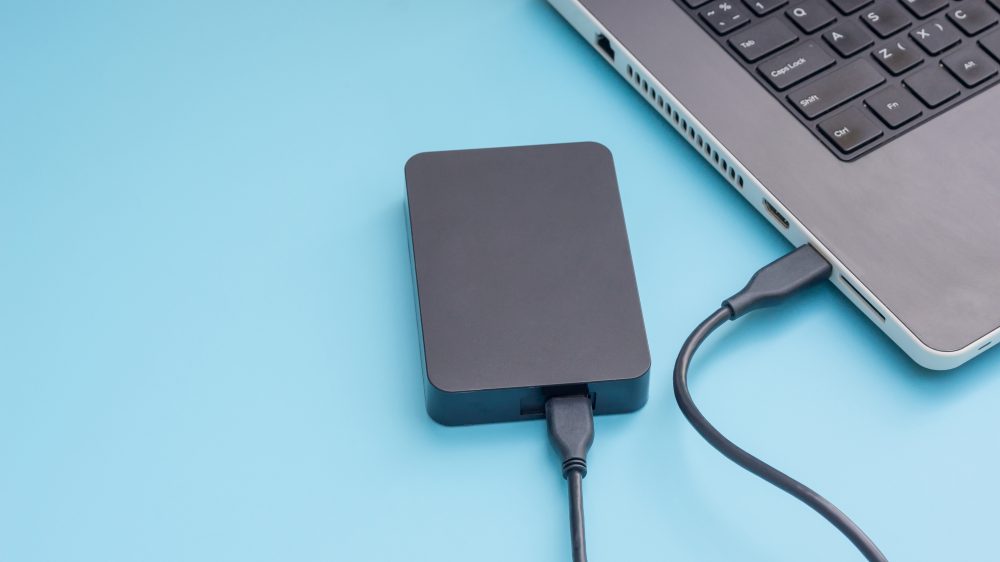
Always eject an external drive before removing its USB cable. Modern operating systems can use write caching during file transfers. The computer may still have information waiting to reach the storage device.
Removing the cable too early can interrupt a write operation. That interruption can corrupt individual files or damage file-system structures. Windows provides a Safely Remove Hardware option. macOS provides an Eject option.
Wait for the system to confirm that you can safely remove the device. Then disconnect the cable. This simple habit can reduce the risk of file corruption.
Monitor Drive Health
Monitor the health of important external drives regularly. S.M.A.R.T. information can provide useful warnings about certain hard-drive problems. Manufacturer tools and reputable diagnostic applications can also help identify developing issues.
Watch for increasing bad-sector counts, read errors, high temperatures, unusual noises, or repeated connection failures. These signs can indicate that a drive may soon become unreliable.
If a drive starts behaving differently, move important files to another healthy device. Do not wait for a complete failure. Early replacement can prevent a stressful emergency recovery situation.
Frequently Asked Questions (FAQs)
Can I recover files from an external hard drive if it asks to format?
Yes, you may still recover files when an external hard drive asks you to format it. Windows may display this message because it cannot read the current file-system structure. The underlying data may still exist on the storage media.
Do not select the format option when important files remain on the drive. Formatting can change the structures that recovery software needs to analyze. Instead, stop using the drive and assess its condition.
Recovery software may locate the original files when the drive has no physical problems. A professional recovery service can provide a safer option when the drive contains highly valuable information or shows signs of physical damage.
Is it possible to retrieve files from a completely dead external hard drive?
A completely dead external hard drive may still contain recoverable data. The actual cause of the failure determines the available recovery options. A failed USB enclosure, power adapter, or interface does not necessarily mean that the internal storage has failed.
Mechanical failures require more advanced techniques. Damaged heads, motor failure, severe bad sectors, and internal electronic faults can prevent normal software recovery. A professional laboratory can diagnose these problems and determine the safest recovery method.
Avoid repeatedly powering on a drive that shows mechanical symptoms. Each additional attempt can increase wear on damaged components. Professional assessment can reduce unnecessary handling of the original media.
How much does professional external hard disk recovery cost?
Professional external hard disk recovery costs vary according to the type and severity of the problem. Logical recovery usually requires different tools from mechanical recovery. A simple deleted-file case may need only software analysis, while a physically damaged drive may require laboratory work.
Storage capacity can also affect the recovery process. Other factors include damaged components, bad sectors, platter condition, file-system complexity, replacement parts, and recovery urgency.
The best approach involves a proper diagnosis before recovery work begins. A specialist can assess the drive and explain the available recovery options based on its actual condition.
Can I use free data recovery software safely?
You can use free or trial recovery software for some logical data-loss situations. Many programs allow you to scan a drive and preview recoverable files before you purchase a full license.
Use the software only when the drive remains physically stable. Install the program on your computer rather than the affected drive. Save every recovered file to another healthy storage device.
Avoid software scans when the drive clicks, grinds, repeatedly disconnects, or reports severe read errors. These symptoms can point to physical failure. Professional recovery may provide a safer solution in such cases.
Contact Us: Recover lost files external hard drive
Need professional assistance to recover lost files from an external hard drive? Our data recovery specialists can help with accidental deletion, formatting, RAW partitions, corrupted file systems, inaccessible drives, damaged HDDs, and other storage problems.
If your external drive contains important photographs, business documents, project files, videos, or other valuable information, avoid unnecessary formatting and repair attempts. Every additional write operation can reduce the chance of successful recovery.
Contact our team for a consultation and discuss the condition of your external hard drive. Our specialists can help identify whether the problem involves logical corruption, accidental deletion, or physical damage. They can then recommend a suitable recovery approach based on the condition of your device.
Website: https://recoverydata.ae/
Email: info@recoverydata.ae
Mobile: +971 56 410 1040

