
Should I Stop Using A Hard Drive After Data Loss?
The truth is, watching critical files disappear can be one of the most stressful moments for any computer owner or business manager in Dubai. You may face a sudden format request on an external drive. You may also lose an entire partition or accidentally delete important financial files. What you do next can affect your […]
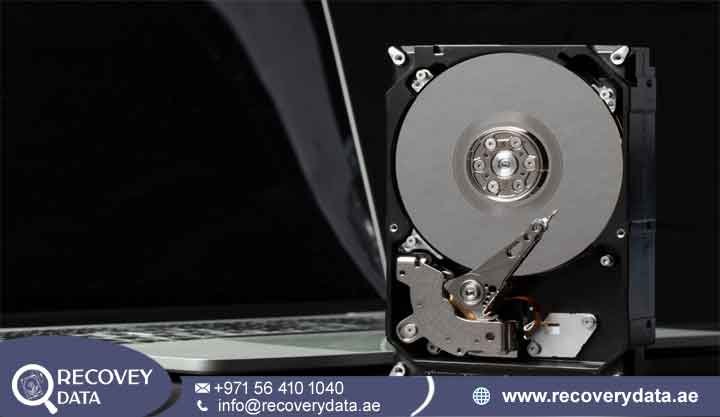
The truth is, watching critical files disappear can be one of the most stressful moments for any computer owner or business manager in Dubai. You may face a sudden format request on an external drive. You may also lose an entire partition or accidentally delete important financial files. What you do next can affect your chances of recovery. If you are wondering whether you should keep using the storage device, the answer is simple: stop using the hard drive immediately. Continued use can overwrite deleted data and increase existing hardware damage. Think of a failing drive like a car with a serious mechanical problem. Driving it further can turn a repairable issue into a much bigger failure.
Why You Must Stop Using Your Hard Drive Immediately
Data loss can happen for many reasons. These include accidental deletion, file system corruption, bad sectors, physical damage, or hardware failure. Continuing to use the affected drive can make the problem worse. Every new file can change data on the drive. Software installations can also use storage space. System updates, downloads, and temporary files create new writes. These writes may overwrite information that you want to recover. Physical damage creates another risk. A failing hard drive may contain damaged mechanical parts. Continued operation can place extra stress on those components. This can reduce the chance of a successful recovery. The safest approach is to stop using the drive as soon as you notice data loss. Avoid repair attempts until you understand the cause of the problem. Professional assessment can help identify the safest recovery method.
The Danger of Data Overwriting
Many deleted files do not disappear immediately. When you delete a file, the operating system often marks its storage space as available. The original data may remain on the drive until new information replaces it. This creates an opportunity for data recovery. Recovery software or professional tools may locate the remaining data. However, continued use can reduce that opportunity. Your computer performs many tasks in the background. Browsers create cache files. Applications create temporary files. Antivirus programs scan storage. Operating systems download updates. These processes can write new data to the drive. Even simple actions can create new writes. Opening applications, downloading files, or saving documents may use the same storage space. New data can overwrite deleted files and make recovery harder. For this reason, stop using the affected drive as soon as possible. Do not install recovery software on the same drive. If the lost files are important, consider professional recovery before making further changes.
Mechanical Damage and Head Crashes in HDDs
Traditional Hard Disk Drives contain sensitive mechanical components. Magnetic platters spin at high speeds inside the drive. Read/write heads move across the platters to access stored information. These components work with extremely small clearances. A mechanical fault can therefore cause serious damage. A damaged head may scratch the platter surface. A failing spindle motor can also prevent the platters from spinning correctly. If the platter surface becomes damaged, recovery becomes more difficult. Some sectors may become permanently unreadable. Continued operation can also increase the affected area.Pay attention to unusual sounds. Clicking, grinding, buzzing, or repeated spin-up sounds can indicate a hardware problem. A drive that suddenly becomes very slow can also show signs of failure. If you notice these symptoms, stop using the HDD. Do not repeatedly restart the computer to see if the drive works again. Each attempt can place more stress on failing components.
Electrical and Logical Corruption Can Get Worse
Not every hard drive problem involves physical damage. File system corruption can also make files inaccessible. Common file systems include NTFS, exFAT, APFS, and other formats. The file system helps the operating system locate files and folders. It also tracks storage space and directory structures. Damage to these structures can cause several warning signs. You may see incorrect file sizes or missing folders. The operating system may show the drive as RAW. You may also receive a message asking you to format the drive. A small logical problem can sometimes grow into serious corruption. Repeated repair attempts may change important file system information. This can make later recovery more difficult. If the drive suddenly becomes inaccessible, avoid formatting it. Do not run several repair tools without understanding the problem. A professional assessment can help identify the cause before anyone changes the original data.
What to Do Immediately After Hard Drive Data Loss
Stay calm when you first notice data loss. Missing files do not always mean permanent data destruction. Deleted or inaccessible data may still exist on the storage device. Your first goal should be to protect the remaining data. Stop normal use of the affected drive. Avoid opening files repeatedly or moving data to other folders. Do not install applications on the affected drive. Avoid downloading recovery software to it. Also prevent automatic updates and unnecessary background activity when possible. The less you change, the better. Preserving the current condition of the drive gives recovery specialists a better starting point.
Power Down Immediately
Stop using the affected storage device when you notice data loss. Continued computer activity can create new files on the drive. Background processes can also write data without your knowledge. These processes include system updates, browser caches, temporary files, and application activity. Pay close attention to physical warning signs. Clicking, grinding, buzzing, or repeated spinning can indicate mechanical damage If the drive shows these symptoms, avoid repeated power cycles. Repeated attempts may increase mechanical wear. Preserve the drive and seek professional advice instead.
Disconnect Unnecessary Connections
After stopping the system, disconnect the affected storage device when appropriate. Remove unnecessary USB cables, docking stations, or external connections. For network storage, prevent other systems from accessing the affected device. This includes NAS devices and shared storage systems. Disconnecting the drive can prevent automatic access. Indexing services, antivirus scans, backup tools, and synchronization software may otherwise continue working with the drive. The goal is simple. Prevent unnecessary activity until you understand what happened.
Resist Running Quick Fixes
Many users immediately search for repair tools after losing access to files. This can create additional problems.
Windows CHKDSK and macOS Disk Utility First Aid can repair certain file system issues. However, these tools do not provide complete data recovery. They can also modify file system structures during the repair process. A drive with serious corruption may also have physical problems. Bad sectors and failing hardware can exist alongside logical errors. Do not assume that a formatting message means you should format the drive. Formatting can remove important file system information and reduce recovery options. If the files are valuable, stop before running repair utilities. Professional diagnosis can help determine the safest next step.
Common Myths vs. Realities of DIY Data Recover

Many online forums recommend risky methods for damaged hard drives. Some of these methods can make recovery much harder. Understanding the common myths can help protect your files.
The Freezer Myth
Putting a hard drive in a freezer does not provide a reliable repair. Temperature changes can create condensation inside the device. Moisture can damage sensitive components and electronic connections. A cold drive can also experience thermal stress when you move it into a warm environment. This method can therefore create additional problems instead of fixing the original failure.
Running Aggressive Software on Failing Hardware
Recovery software can place heavy demands on a storage device. This becomes risky when the drive already has physical problems. A clicking or unstable HDD may fail during a long scanning process. Repeated scans can also stress weak mechanical components. If the drive shows physical warning signs, stop using recovery software. A specialist can first create a controlled image of the drive when possible.
When Can You Safely Attempt DIY Software Recovery?
DIY recovery may work in some simple logical data loss situations. The key is to confirm that the hardware remains healthy. A drive may be suitable for careful software recovery when it operates normally. It should spin smoothly and remain quiet. The computer should also recognize its correct capacity. Accidental deletion is one example of a possible logical recovery case. A quick format may also leave recoverable data in some situations. However, software recovery becomes risky when the drive shows physical warning signs. Avoid scanning a drive that freezes the computer or repeatedly disconnects. Do not continue if the drive shows S.M.A.R.T. warnings. Clicking, buzzing, beeping, or grinding sounds also require caution. When physical failure seems possible, professional recovery is usually the safer option.
Professional Hard Drive Recovery vs. DIY Risks
Professional recovery can help when software methods are no longer suitable. Specialist laboratories use dedicated equipment to handle damaged storage devices. Advanced recovery systems can create sector-by-sector images of failing drives. Specialists may also work around firmware problems and unstable storage areas. This approach helps reduce unnecessary stress on the original device. Mechanical failures require even greater care. Damaged read/write heads or spindle motors can require controlled hardware work. Specialized cleanrooms help protect exposed hard drive platters from airborne contamination. Class 100 or ISO 5 environments provide controlled conditions for sensitive drive repairs. Professional recovery services can also help businesses protect confidential information. This can be important when the affected drive contains financial records, customer files, databases, or business documents. For clients across Dubai, Abu Dhabi, Sharjah, and the wider UAE, professional assessment provides a safer way to understand the recovery options before further work begins.
Frequently Asked Questions
Can I Recover Deleted Files If I Kept Using My Computer for a Few Hours?
You may still recover deleted files after using the computer for several hours. However, the chances depend on what happened to the original storage space. Deleted files may remain on the drive until new data replaces them. Normal computer activity can create many new writes during those hours. Browsers create cache files. Applications create temporary data. System updates can also write new information. Downloads and saved documents may use the same storage space. If new data overwrites the deleted files, recovery can become much harder. Stop using the computer once you notice the loss. If the files are important, seek professional advice quickly.
Should I Run CHKDSK If My Hard Drive Is Not Working After Data Loss?
You should be careful before running CHKDSK after serious data loss. CHKDSK focuses on repairing certain Windows file system problems. It does not function as a complete data recovery solution. The tool can make changes to the file system during the repair process. Those changes may affect recovery in some situations. The risk becomes greater when the drive has bad sectors or physical damage. It can also increase when the drive repeatedly disconnects or freezes. If the data is important, avoid running CHKDSK before assessment. A professional can determine whether repair or recovery should come first.
How Do I Know If My Hard Drive Failure Is Physical or Logical?
Logical failures usually involve file system or partition problems. The drive may still appear in Windows or macOS. It may also spin normally without unusual sounds. You may see missing files or inaccessible folders. The system may show the partition as RAW. It may also ask you to format the drive. Physical failures involve hardware or electronic problems. Common warning signs include clicking, grinding, buzzing, overheating, or repeated disconnections. A drive may also freeze the computer or fail to show its correct capacity. These symptoms can indicate a physical problem. Some failures include both physical and logical issues. A professional diagnosis can help identify the actual cause.
Where Can I Get Professional Hard Drive Recovery Service in the UAE?
Professional hard drive recovery services are available across the UAE. Specialists can handle accidental deletion, corrupted partitions, bad sectors, mechanical failures, and other storage problems Recovery Data provides professional data recovery services for hard drives, SSDs, external drives, and enterprise storage systems. The process starts with a diagnostic assessment of the affected device. Specialists can determine whether the problem involves logical corruption, electrical failure, firmware issues, or mechanical damage. They can then recommend an appropriate recovery approach. If your files are important, avoid experimenting with the original drive. Early professional assessment can help protect the remaining recovery options.
Secure Your Data Today
A failed hard drive can create serious problems for individuals and businesses. The situation can become worse when users continue accessing the affected storage device. Stop using the drive as soon as you notice data loss. Avoid formatting, repair utilities, and unnecessary scanning. These actions can change the condition of the storage media.
If you need professional assistance, contact Recovery Data for a data recovery assessment.
Email: info@recoverydata.ae
Phone: +971 56 410 1040
Location: Dubai, UAE

