
Symptoms Of Hard Disk Failure
Experiencing sudden system crashes, unexpected freezing, slow file transfers, missing files, or strange grinding noises from your computer can cause immediate concern. These problems often indicate that something is wrong with the storage device. A hard drive may not fail without warning. In many cases, it shows subtle changes before it becomes completely inaccessible. The […]
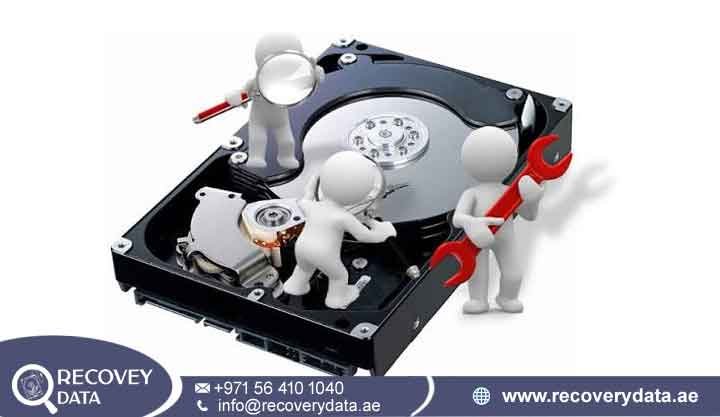
Experiencing sudden system crashes, unexpected freezing, slow file transfers, missing files, or strange grinding noises from your computer can cause immediate concern. These problems often indicate that something is wrong with the storage device. A hard drive may not fail without warning. In many cases, it shows subtle changes before it becomes completely inaccessible. The computer may become slower, applications may take longer to open, or files may suddenly become difficult to access. You may also notice unusual sounds during normal file operations.
Recognizing these warning signs can give you valuable time to protect your information. You can back up important documents, photographs, videos, business records, and project files before the drive suffers a complete failure. Early action can also help you determine whether you need to replace the drive or contact a professional data recovery specialist. If you notice several symptoms of hard disk failure at the same time, treat the situation seriously and avoid unnecessary activity on the affected storage device.
Understanding Hard Drive Decline: Mechanical HDDs vs. Solid-State Drives (SSDs)
Storage hardware generally falls into two major categories: traditional Hard Disk Drives (HDDs) and Solid-State Drives (SSDs). Each type uses a different technology, so each one can develop different failure symptoms. Symptoms of hard disk failure often appear as unusual noises, slow performance, bad sectors, boot errors, and file corruption when an HDD begins to deteriorate. Traditional HDDs use mechanical components to store and access information. Magnetic platters spin at high speeds while read/write heads move across their surfaces. A spindle motor keeps the platters rotating, while the actuator assembly positions the heads over specific areas of the disk. These components must work together accurately during every read and write operation.
Over time, mechanical components can experience normal wear. Motor bearings can weaken, read/write heads can develop problems, and platters can develop unreadable sectors. Physical impacts can also damage internal components. Even a small drop while the drive is operating can create serious problems because the read/write heads operate extremely close to the platter surface. SSDs work differently. They do not contain spinning platters or moving read/write heads. Instead, they use NAND flash memory and a controller to store and manage information. This design makes SSDs more resistant to physical shock. However, SSDs can still fail because of worn memory cells, controller problems, firmware corruption, overheating, power problems, or electronic component failure.
Recognizing the specific symptoms of hard disk failure or SSD degradation therefore requires an understanding of the storage technology inside your computer. A clicking noise usually points toward a mechanical HDD problem. An SSD, however, may fail silently and simply disappear from the BIOS or operating system.
Primary Causes Behind Storage Hardware Degradation
Thermal Stress: Excessive heat can shorten the operating life of storage hardware. Blocked laptop vents, dusty desktop cases, poor airflow, and high ambient temperatures can increase internal temperatures. Prolonged heat can place stress on electronic components and accelerate component degradation. SSD controllers can also reduce performance when temperatures become too high.
Physical Wear & Age: Mechanical HDDs contain moving parts that experience wear during normal operation. Spindle motors, bearings, actuator assemblies, and read/write heads can gradually deteriorate. SSDs also have a finite number of write cycles. Modern SSDs manage this wear through technologies such as wear leveling, but heavy workloads can still contribute to long-term degradation.
Electrical Anomalies: Unstable power supplies, voltage fluctuations, electrical surges, and faulty adapters can damage sensitive storage components. HDD controller boards and SSD controllers contain electronic components that require stable power. A sudden electrical event can damage the PCB or controller and cause the drive to stop responding.
Physical Impact: Drops and strong vibrations can cause serious damage to mechanical drives. An HDD can suffer head or platter damage if it receives a strong impact while operating. External drives face an even greater risk because users frequently move them between computers and locations.
File-System and Software Problems: Not every storage problem comes from physical hardware. Sudden shutdowns, malware, interrupted transfers, and operating-system errors can corrupt file-system structures. These problems can produce symptoms that look like hardware failure. Proper diagnosis can help distinguish logical corruption from genuine physical degradation.
The Core Warning Signs: Top Symptoms of Hard Disk Failure
Monitoring system behavior can help identify storage problems before they become catastrophic. A single symptom does not always confirm a failing drive. However, several symptoms appearing together should raise concern. The earlier you identify these warning signs, the more time you have to copy important files and arrange professional assistance. Pay particular attention to unusual sounds, repeated freezing, disappearing files, boot problems, and recurring disk errors.
Audible Warnings: Mechanical Noises and Clicks
Traditional hard drives normally produce a quiet hum or soft spinning sound during operation. You may also hear brief clicking sounds when the heads move during normal access. However, repeated or unusually loud clicking can indicate a serious problem. Sharp clicking, repetitive ticking, grinding, scraping, or repeated spin-up and spin-down cycles can indicate mechanical trouble. A damaged read/write head may struggle to locate the correct tracks. The drive may repeatedly attempt the same operation and produce a noticeable clicking pattern.
Technicians often refer to repeated head-related clicking as the “click of death.” This problem can prevent the drive from reading important sectors. If your hard drive is making clicking noise, stop unnecessary activity immediately. Do not repeatedly restart the computer just to see whether the drive starts working again. If the drive still works, prioritize your most important files. If it continues clicking or becomes inaccessible, professional recovery may provide a safer option. Continued operation can increase internal damage and reduce the chances of successful recovery.
Performance Drops: Sluggishness and Constant Freezes
A failing drive can struggle to read data from damaged or unstable sectors. The operating system may repeatedly attempt to read the same area. Each retry can increase the time required to complete a simple task. You may notice extremely slow file transfers, applications that take several minutes to open, or folders that freeze when you access them. Windows may also show unusually high disk activity even when you are not performing a major task.
A gradual decline in slow hard drive performance can have many causes. Low RAM, background applications, malware, an aging operating system, or insufficient storage space can also make a computer slow. However, the situation becomes more concerning when slow performance occurs alongside file errors, freezing, or unusual drive noises. A computer freezing hard drive problem can also appear when the operating system tries to access damaged sectors. The entire computer may seem frozen because the system is waiting for the drive to respond. Repeated freezes during specific file operations can provide an important clue that the storage device has developed bad sectors or read errors.
System Stability and Boot Failures
The operating system depends on the storage drive to load essential system files during startup. If those files sit on damaged or unreadable sectors, the computer may struggle to boot correctly. You might see repeated restarts, Blue Screens of Death (BSOD), startup repair screens, or long periods of loading. The computer may also become stuck in an endless boot loop. These problems can indicate a storage failure, especially when they appear without a recent software or hardware change.
A hard drive boot failure can occur when critical operating-system files become inaccessible. Bad sectors in important system areas can prevent Windows or another operating system from loading normally. These problems represent common bad hard drive symptoms, but they do not always prove that the drive itself has failed. Corrupted system files, faulty drivers, malware, and operating-system problems can produce similar behavior. Checking the drive’s health and SMART information can help narrow down the cause.
Data Access Errors and File Corruption
Missing files and damaged documents can provide another warning that your storage device needs attention. You may notice that a folder suddenly disappears or that Windows reports an error when you try to open a particular document. Other symptoms include “Access Denied” messages, files that show an incorrect size, documents that no longer open, or photographs that display partially. In some cases, the operating system may report that a file or folder does not exist even though it appeared normally before.
These are common corrupted hard drive symptoms. When sectors become difficult or impossible to read, the operating system may not retrieve complete file information. Damage to directory structures can also make files appear missing. Do not repeatedly open or copy damaged files if the drive shows other signs of failure. A large recovery operation can place additional stress on a deteriorating drive. Instead, prioritize the most important information and consider creating a drive image or contacting a professional recovery service.
Hardware Connection and Interface Anomalies
Not every detection problem means that the storage media itself has failed. Sometimes the computer cannot communicate with the drive because of a damaged cable, faulty port, loose connection, or failing interface. if BIOS, UEFI, Windows, or macOS periodically fails to detect the storage device, you may encounter a hard drive not detected problem. An internal SATA drive may disappear because of a damaged data cable or faulty motherboard port. An NVMe SSD may stop appearing because of a slot, firmware, controller, or power issue.
External drives can experience similar problems. A faulty USB cable, damaged enclosure, or failing USB-to-SATA bridge can prevent the computer from accessing the internal drive. Try another compatible cable or port when appropriate. You can also check whether another computer recognizes the drive. However, avoid repeated testing when the drive shows mechanical symptoms. If the drive clicks, grinds, overheats, or repeatedly disconnects, focus on protecting the data instead of continuing to troubleshoot the connection.
How to Diagnose Your Drive Health Right Now (Step-by-Step)
Understanding the symptoms provides useful clues, but diagnostic testing can provide additional information. You can use operating-system tools and reputable monitoring utilities to examine the condition of your storage device. Always remember that diagnostic tools cannot predict every type of failure. A drive can sometimes report healthy SMART information and still fail suddenly. Treat SMART data as one part of the overall diagnosis rather than a complete guarantee of drive health.
Check S.M.A.R.T. Status via Command Line (Windows): Open Command Prompt as an administrator and enter wmic diskdrive get status. If Windows returns OK, it means the basic SMART status does not report a failure through that command. It does not guarantee that the drive has no problems. Modern Windows systems may also use newer management methods, so the command may not provide detailed health information on every computer.
Use Specialized Diagnostics: Reputable tools such as CrystalDiskInfo can display more detailed SMART information. Depending on the drive, you may see attributes related to temperature, sector health, read errors, wear levels, and other indicators. These metrics can help identify failing hard drive symptoms before the drive becomes completely inaccessible. Compare the diagnostic information with the actual behavior of the computer. A warning combined with clicking, freezing, and file corruption deserves immediate attention.
Run Native Drive Scans: Windows provides tools such as CHKDSK for checking file-system structures and identifying certain disk errors. These tools can help with logical corruption and some file-system problems. However, CHKDSK cannot repair a physically damaged platter, failing read/write head, broken motor, or defective controller. It can also make changes to the file system. If the drive contains important data and shows physical symptoms, consider data recovery before running extensive repair operations.
Immediate Action Plan: What to Do If Your Drive Is Failing
If your diagnostics or observations confirm several hard drive failure signs, take action immediately. Do not wait for the drive to stop working completely. A failing drive can deteriorate quickly, especially when it develops mechanical problems or a growing number of unreadable sectors.
Prioritize Backups Immediately: Start with the most important information. Copy critical documents, photographs, videos, databases, project files, and business records to another healthy storage device or secure cloud storage. Do not attempt to copy everything at once if the drive is unstable. A failing drive may struggle with a long continuous transfer. Prioritize irreplaceable files first and monitor the drive throughout the process.
Avoid Heavy Disk Operations: Avoid unnecessary defragmentation, partition resizing, large software installations, and intensive virus scans on a failing drive. These operations can generate additional read and write activity. Do not repeatedly restart the computer to test whether the drive has recovered. If the drive contains valuable data, unnecessary operation can reduce the remaining recovery window.
Plan a Prompt Hardware Replacement: A drive that shows persistent physical failure symptoms should not remain your primary storage device. Back up important data and replace the failing hardware. If the drive remains stable, you may consider creating a complete clone before replacing it. A clone can provide an additional recovery copy and reduce dependence on the original hardware.
Frequently Asked Questions (FAQs)
Can a slow computer always mean hard drive failure?
No. A slow computer does not always indicate hard drive failure. Low RAM, excessive startup programs, malware, outdated drivers, limited free space, and background applications can all reduce system performance. However, slow performance becomes more concerning when it appears with other storage-related symptoms. Frequent freezing, corrupted files, disappearing folders, unusually high disk usage, and mechanical noises can point toward a failing HDD. If the computer has suddenly become slow and the problem started without an obvious software change, check the storage device before assuming that the operating system simply needs optimization.
How long does a hard drive last once it starts clicking?
There is no reliable time estimate for a clicking hard drive. Some drives may continue working for several hours or days. Others may stop responding after only a few minutes. Clicking usually indicates that the drive has difficulty completing mechanical operations. Every additional power cycle or read attempt can potentially make the problem worse. If you hear persistent clicking, stop unnecessary use and protect your important files immediately. If the drive cannot provide stable access, professional data recovery may offer the safest path.
Can software repair a physically failing hard drive?
No software can physically repair a damaged spindle motor, broken read/write head, scratched platter, or defective mechanical assembly. Software can address some logical problems, such as file-system corruption or certain directory errors. Software tools can also diagnose some types of storage problems. However, they cannot restore physically damaged components. A physically failing HDD may require professional hardware work. A recovery laboratory can diagnose the drive and use specialized equipment to stabilize it before attempting data extraction.
What is the difference between temporary file corruption and total drive failure?
Temporary file corruption can result from an improper shutdown, interrupted transfer, power interruption, malware, or a software problem. The storage hardware may remain healthy in these situations. Total drive failure involves a more serious hardware or electronic problem. Mechanical wear, damaged heads, motor failure, controller faults, or extensive media damage can make the drive inaccessible. The symptoms can overlap, so proper diagnosis matters. If file corruption continues to spread or occurs alongside clicking, freezing, disappearing drives, and repeated read errors, treat the situation as a potential hardware failure.
Contact Us
Experiencing signs of hard disk failure? Contact our data recovery experts for fast, secure, and reliable assistance. Early professional assessment can help protect important files before a failing storage device becomes completely inaccessible. Our specialists can assist with damaged HDDs, clicking hard drives, corrupted storage, inaccessible disks, deleted files, bad sectors, and other storage-related problems. If your drive contains critical personal or business data, avoid unnecessary repair attempts and contact a recovery professional as soon as possible.
Website: https://recoverydata.ae/
Email: info@recoverydata.ae
Mobile: +971 56 410 1040

