
What Does It Mean When a Drive Is Not Initialized?
Plugging an external hard drive, secondary internal HDD, or SSD into your computer can cause concern when File Explorer cannot find it. The situation becomes more serious when Windows Disk Management shows Disk Unknown Not Initialized with unallocated space. For many users in Dubai and across the UAE, this message can create immediate panic. They […]
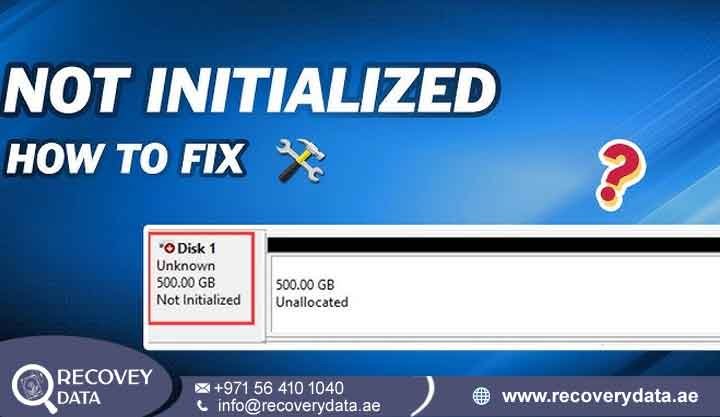
Plugging an external hard drive, secondary internal HDD, or SSD into your computer can cause concern when File Explorer cannot find it. The situation becomes more serious when Windows Disk Management shows Disk Unknown Not Initialized with unallocated space. For many users in Dubai and across the UAE, this message can create immediate panic. They may wonder whether the drive has lost all its files. They may also worry that a simple repair could make the situation worse.
An uninitialized drive does not always mean permanent data loss. Windows may detect the physical storage device but fail to read its partition structure. Your files may still exist on the drive even though the operating system cannot locate them. However, you should take care with the next step. Clicking the wrong option in Disk Management can make data recovery more difficult. You should first understand why Windows shows the drive as uninitialized.
Understanding an Uninitialized Drive
The condition can occur for several reasons. A damaged partition table may cause the problem. File-system corruption can also prevent Windows from reading the drive. Hardware problems can create the same symptom. The recovery process depends on the cause. A simple connection problem may require only a cable replacement. Severe physical damage may require professional data recovery equipment. This guide explains the main causes of an uninitialized drive. It also explains safe troubleshooting steps and situations that require professional help.
What Does “Disk Unknown Not Initialized” Actually Mean?
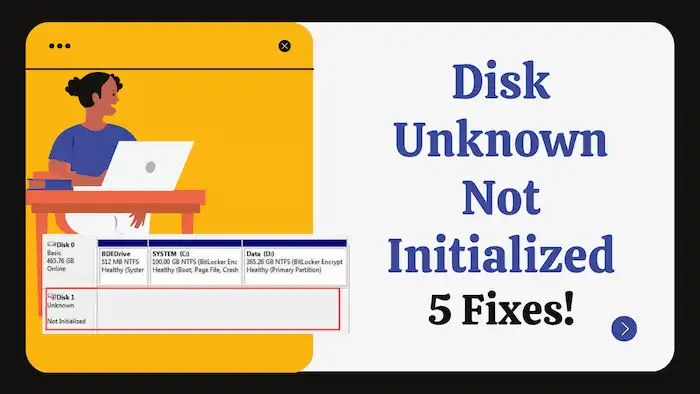
When you initialize a storage drive, Windows creates a partition structure. The system commonly uses Master Boot Record (MBR) or GUID Partition Table (GPT). This structure works like a map for the storage device. Windows uses it to locate partitions and understand how the drive stores data. Without this map, Windows may detect the physical drive but fail to locate its existing partitions. Disk Management may then show the drive as
Unknown, Not Initialized, or Unallocated. This message does not automatically mean that your files have disappeared. Your data may still exist on the magnetic platters of an HDD. It may also remain inside the flash memory of an SSD. Windows simply cannot access the information through the normal partition structure. Several problems can cause this situation. A damaged partition table can create the error. File-system corruption can also cause it. Firmware problems, bad sectors, USB bridge failures, and physical damage can produce similar symptoms.
Why Is Your Hard Drive or SSD Showing as Not Initialized?
An uninitialized drive can have a logical or physical problem. A connection problem can also cause the same message. You should identify the cause before attempting a repair. Different problems require different recovery methods. A drive that becomes uninitialized after a power failure may have partition corruption. A drive that clicks or repeatedly disconnects may have physical damage.
Logical Causes and File System Corruption
Corrupted Partition Table: Power outages can damage the MBR or GPT. Sudden shutdowns can also affect partition information. Unsafe disconnections and interrupted write operations may create similar problems. When the partition table becomes unreadable, Windows loses the information that identifies existing partitions. The files may still remain on the drive.
RAW File System: Severe file-system corruption can prevent Windows from reading NTFS, exFAT, or another file system. Windows may detect the physical drive but fail to understand its internal structure. A RAW or uninitialized status does not automatically mean that the drive has deleted your files. The operating system may simply lack access to the file-system information.
Improper Disconnection: Removing an external hard drive while Windows writes data can cause corruption. Repeated unsafe removal can increase the risk of partition and file-system problems. These logical problems may allow data recovery without opening the physical drive. However, you should avoid writing new data to the affected device.
If the files have high value, consider creating a sector-by-sector image before attempting repairs. A professional can use the image to work on the recovery process without repeatedly accessing the original drive.
Hardware and Connection Failures
Faulty USB Bridges or Enclosures: External hard drives often use a USB bridge board. This board converts the internal drive connection into a USB connection. A failed bridge board can prevent the computer from communicating with the internal drive. Windows may then display the device as uninitialized. In this situation, the internal storage may still work correctly. The enclosure or interface may cause the problem instead.
Insufficient Power Delivery: External drives need stable power. A weak USB port can cause communication problems. A damaged cable or power adapter can create similar symptoms. The drive may disconnect repeatedly when it cannot receive enough power. Windows may then fail to read its partition information.
Mechanical Degradation and Bad Sectors: HDDs contain moving parts. Read/write heads and spindle motors must work correctly to access stored information. Bad sectors can affect important system areas. If the drive cannot read the sectors containing partition information, Windows may report the drive as uninitialized. Mechanical problems often produce warning signs. Clicking, ticking, grinding, repeated spin-up attempts, and frequent disconnections deserve immediate attention.
Can You Initialize a Disk Without Losing Data?
No. You should not initialize a drive when it contains important files and you do not have a verified backup. Windows uses initialization to create a partition structure. Creating a new volume can also change information that recovery specialists need. Initialization may not overwrite every file immediately. However, it can alter the original partition information. New writes can also overwrite recoverable data. If your drive contains important documents, family photographs, business records, databases, videos, or financial files, stop before initializing it. Do not format the drive. Do not create a new volume. Avoid aggressive partition-repair tools until you understand the condition of the device.
Step-by-Step Guide: How to Fix an Uninitialized Drive Without Data Loss
You can perform a few basic checks if the drive shows no physical warning signs. Start with simple connection checks. Avoid advanced repairs if the drive contains the only copy of important data. Professional assessment can provide a safer option in such cases.
1. Check Physical Connections and Hardware Ports
Disconnect the storage device from the computer. Inspect the cable for visible damage. Try another compatible USB cable if one is available. You can also try another USB port. Connect the drive directly to the computer whenever possible. Avoid USB hubs during testing. Hubs can introduce additional power and communication problems. If you use an external desktop hard drive, check the power adapter. Make sure the adapter provides the correct power. Check the connection at both ends. For an internal drive, check the SATA data cable and power cable. Make sure both connections fit securely. You can also test the drive on another computer. If another computer detects it correctly, the original computer may have a connection or driver problem. If the drive becomes accessible after you change the cable or port, copy your important files immediately. Do not assume that the drive has permanently recovered.
2. Update or Reinstall Storage Drivers
Right-click the Windows Start button.
Select Device Manager. Expand Disk drives. Expand Universal Serial Bus controllers. Look for yellow warning icons. Right-click the affected device. Select Update driver. Restart the computer if required. Windows can reinstall the required driver after a restart. This process may solve certain communication problems. However, drivers cannot repair serious physical damage. They also cannot restore major partition corruption. If the drive keeps disconnecting or freezes Windows, stop repeated testing. These symptoms may indicate a deeper hardware problem.
3. Evaluate Using Specialized Data Recovery Software
Specialized recovery software may help when the drive works normally. Some programs can scan an uninitialized disk for previous partitions and files. A Deep Scan or Raw Recovery option may locate files that Windows cannot access. Always save recovered files to another healthy storage device. Never save them to the affected drive. Monitor the drive during the scan. Stop the process if the drive starts clicking or disconnecting. You should also stop if Windows freezes or the drive shows an incorrect capacity. These signs may indicate hardware instability. Deep scanning can place heavy read demands on an HDD. A failing drive may deteriorate during repeated scans. For critical data, professional recovery specialists can create a controlled image first. They can then work with the image during the recovery process.
When to Stop DIY: Professional Uninitialized Hard Drive Recovery in the UAE
You should stop DIY recovery when the drive shows physical warning signs. Clicking, buzzing, ticking, and grinding sounds require extra caution. You should also stop if Disk Management freezes whenever you connect the drive. A reported capacity of 0 bytes can also indicate a serious problem. Other warning signs include repeated disconnections and extremely slow detection. Sudden changes in the reported capacity also deserve attention. These symptoms can point to firmware, controller, electronic, or mechanical problems. Software tools cannot safely resolve every type of failure. For businesses and individuals in Dubai, Abu Dhabi, Sharjah, and other UAE locations, continued DIY attempts can increase the risk of permanent data loss. The safest recovery method depends on the failure type. Logical problems may require partition reconstruction. Physical HDD failures may require controlled imaging and laboratory work.
Professional Recovery Processes in Dubai
Recovery Data provides advanced diagnostics and secure data recovery services across the UAE. Our engineers first examine the storage device and identify the failure type. Severe firmware corruption may require specialized imaging tools. Damaged read/write heads may also require advanced hardware recovery methods. Electronic board failures require a different approach. Engineers can examine the affected components and determine the safest recovery method. Mechanical failures require even greater care. A damaged HDD may need cleanroom intervention before engineers can access its internal components. Cleanroom work helps protect sensitive internal drive components from dust and contamination. Engineers can then work toward extracting readable information from the storage platters. Logical failures follow a different process. Specialists can analyze partition structures, file-system metadata, and storage sectors. They may reconstruct the original partition layout when the available information supports recovery. They can then extract accessible files while limiting changes to the original drive.
Frequently Asked Questions
Can data be recovered from an uninitialized external hard drive?
Yes. Many uninitialized drives still contain recoverable data. Windows may simply lack access to the original partition structure. A professional data recovery technician can examine the drive and identify the cause of the problem. The technician may find partition corruption, file-system damage, firmware issues, electronic faults, or physical damage. Recovery chances depend on the failure type and the actions taken after the problem occurred. Avoid formatting or initializing the drive when the files have significant value.
Why does my external hard drive say not initialized suddenly?
Several problems can make an external hard drive suddenly show as uninitialized. Unsafe removal can cause the issue. File-system corruption can also create the problem. A failed USB enclosure can prevent communication with the drive. Power problems can produce similar symptoms. Bad sectors, firmware errors, and physical deterioration can also affect drive detection. A sudden change does not automatically mean that the drive has lost all its data. Windows may simply have lost access to the partition structure.
How much does data recovery cost in Dubai?
Data recovery costs depend on the storage device and failure type. HDD, SSD, RAID, USB, and other storage devices require different recovery procedures. Logical recovery usually requires less complex work than physical recovery. Mechanical failures may require cleanroom intervention. Firmware problems can also increase the complexity of the recovery process. Severe physical damage may require specialized equipment. Recovery Data provides a diagnostic assessment before starting recovery work. The assessment helps determine the recovery requirements and expected cost.
How long does the data recovery process take?
Standard diagnostic evaluations usually take 24 to 48 hours. The complete recovery process can take several days. A simple logical recovery may require less time. Severe physical damage can extend the recovery period. Bad sectors, firmware problems, damaged heads, and mechanical failures can also increase the recovery time. The recovery team can provide a more accurate estimate after the initial diagnostic assessment.
Secure Professional Assistance
If your storage drive shows as uninitialized and contains important files, protect the device from further changes. Do not initialize the disk. Do not format it. Do not create a new partition. Avoid repeated repair attempts until you understand the cause of the problem. Each additional write can affect information that recovery specialists may need. Early professional assessment can help protect valuable data. This step becomes especially important when the drive makes unusual sounds or shows an incorrect capacity. Repeated disconnections also require caution. The same applies when Windows freezes after you connect the drive.
Contact Recovery Data for a professional data recovery assessment.
Email: info@recoverydata.ae
Phone: +971 56 410 1040
Location: Dubai, UAE

