
Why Is My Hard Drive Showing As RAW?
Connecting an external hard drive or starting your PC and finding the drive inaccessible can cause immediate panic. This becomes even more stressful when the drive stores family photos, business documents, videos, financial records, or important work files. One of the most concerning situations occurs when Windows suddenly shows your hard drive as RAW. You […]
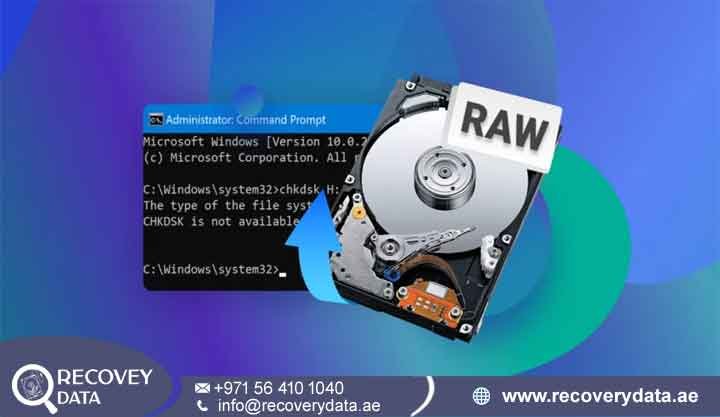
Connecting an external hard drive or starting your PC and finding the drive inaccessible can cause immediate panic. This becomes even more stressful when the drive stores family photos, business documents, videos, financial records, or important work files. One of the most concerning situations occurs when Windows suddenly shows your hard drive as RAW. You may also see error messages such as: If your hard drive changed to RAW, Windows can no longer read its file system correctly. The computer may still detect the physical drive. However, Windows cannot understand how the folders and files remain organized. at Recovery Data.
This problem can make the drive appear empty or inaccessible. You may also lose access to an entire partition. However, this does not mean your data is permanently gone. A RAW status usually means that Windows cannot recognize the file system. Your actual files may still exist on the storage media. The problem often affects the metadata that tells Windows where and how to find those files. The safest approach involves protecting the existing data first. Avoid formatting the drive. Avoid saving new files to it. Also, avoid repeated repair attempts if the drive shows signs of physical failure.
What Does a “RAW” Hard Drive Mean?
Under normal conditions, storage devices use file systems such as NTFS, FAT32, or exFAT. These file systems organize files and folders on the drive. They also help Windows locate and access stored data. Think of the file system as an index for your hard drive. It tells Windows where files exist and how different folders connect with each other. An NTFS drive contains several important structures. Windows uses these structures to identify file names, directories, permissions, timestamps, and file locations. When these structures work correctly, Windows can display your folders and files. You can then open, copy, rename, and manage your data normally. A drive can become RAW when important file system information becomes corrupted. Damage may affect the partition table, boot sector, MFT, file allocation information, or other metadata.
Windows then loses the information it needs to mount the partition. It may show the physical disk in Disk Management, but it cannot access the files normally.Instead of showing NTFS, FAT32, or exFAT, Windows may display the file system as RAW. You may also see a drive letter in File Explorer without being able to open it. A RAW drive does not always mean that every file has disappeared. In many cases, the storage sectors still contain valuable data. Imagine a library with thousands of books. The books still exist, but the catalog has become damaged. The librarian cannot locate each book correctly. A RAW file system can create a similar problem for your computer. RAW also does not necessarily describe a physical drive format. It usually indicates that Windows cannot recognize the existing file system. Several issues can cause this condition. These include logical corruption, partition damage, bad sectors, hardware problems, and failing storage components.
Top Reasons Why a Hard Drive Changes to RAW
Several situations can cause a hard drive to appear as RAW. Some problems involve software or file system corruption, while others result from physical damage. Understanding these causes can help you avoid further data loss and choose the right recovery approach. One common cause is sudden power failure. An unexpected shutdown can interrupt active read and write operations. If Windows was updating important file system information when the power went off, the partition may become corrupted. This can prevent Windows from reading the drive correctly when you reconnect or restart the computer.
Improper ejection can also cause a hard drive to become RAW. Removing a USB drive without safely ejecting it can interrupt background write operations. Windows may continue writing data even after a file appears to finish copying. Disconnecting the drive during this process can damage important file system information.
Bad sectors and physical wear represent another common cause. Older hard drives can develop bad sectors as their components wear over time. If these damaged sectors contain important file system information, Windows may fail to read the partition correctly. A drive with bad sectors may also show slow performance, frequent freezes, unexpected disconnections, or unusual sounds before it becomes RAW.
Partition table damage can also make a drive appear as RAW. Accidental partition deletion, failed updates, partition management software, or incorrect disk operations can affect important partition information. When Windows cannot identify the correct partition structure, it may lose access to the stored files even though much of the data remains on the drive.
Malware or virus activity can create similar problems. Certain types of malware can damage file system structures or modify stored data. A serious infection may make one or more partitions inaccessible. In some cases, the malware can also affect multiple connected storage devices, making immediate data protection especially important.
Other Causes of RAW File System Errors
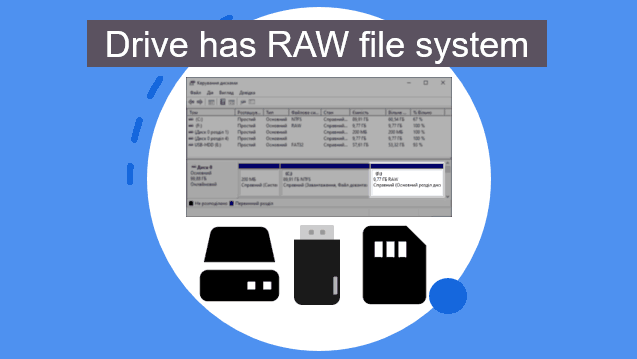
Several additional problems can also trigger a RAW status. A damaged USB cable can interrupt communication with an external drive. A faulty enclosure can create similar symptoms. Power adapters can also cause problems. An unstable power supply may make an external HDD disconnect during important operations. Overheating can affect drive performance as well. Firmware problems and repeated system crashes can also contribute to file system corruption. Sometimes, the RAW message appears after the drive has already shown warning signs. The drive may have become slow before the problem occurred. You may have noticed frequent freezes or unexpected disconnections. The drive may also have produced unusual clicking or buzzing sounds. These warning signs matter because they can point to physical damage. For this reason, you should not automatically assume that a RAW drive has only a software problem. Check the drive’s overall condition before choosing a recovery method.
Can You Recover Data from a RAW Hard Drive Without Formatting?
Yes. You should follow one important rule when dealing with a RAW drive: Do not format the drive. Windows may display a message asking you to format the disk. This message often appears because Windows cannot recognize the current file system. Formatting creates a new file system structure. This may make the drive usable again. However, it does not repair the original problem in a safe way. A quick format may not immediately overwrite every sector that contains old files. However, it can change important metadata. This can make the original file structure harder to reconstruct. A full format creates an even greater risk. Windows may write across the drive during the process. Those write operations can reduce the chances of recovering important files.
Identify the Type of Drive Problem
Before attempting recovery, determine whether the problem is logical or physical Logical problems usually involve file system corruption, partition damage, or damaged metadata. A healthy drive with logical corruption may still respond normally during a scan. Physical problems require more caution. Mechanical damage, failing read/write heads, bad sectors, motor problems, and electronic faults can make the drive unstable. Repeated scans can place additional stress on a failing HDD. A professional may instead create a controlled image of the accessible sectors. Always recover files to a different healthy storage device. Never save recovered files back to the RAW drive. Saving new data to the affected drive can overwrite sectors that still contain recoverable information.
Step-by-Step Guide: How to Handle a RAW Hard Drive
Step 1: Check Physical Connections and Alternate Ports
A faulty USB cable can cause drive detection problems. Insufficient power can cause similar symptoms. Start by checking the physical connection. Try another USB cable if you use an external HDD. You can also try another USB port. If possible, connect the drive directly to the computer instead of using a USB hub. Test the drive on another computer if you have one available. This step can help identify problems with the original computer or USB interface. If your external enclosure uses a separate power adapter, check that connection as well. An unstable power supply can cause repeated disconnections. You can also check Disk Management in Windows. The system may detect the physical drive while showing the partition as RAW. Do not initialize the disk simply because Windows recommends it. Do not delete the partition either.Avoid formatting or recreating the partition before you protect the existing data. These actions can change the original disk structure.
Step 2: Use Data Recovery Software for Logical Corruption
If the drive spins normally and produces no unusual sounds, data recovery software may help. Specialized recovery tools can scan sectors directly. They can sometimes find files even when Windows cannot read the damaged file system. Some tools search for file signatures. Others look for damaged partitions, folders, and directory structures. The recovery results depend on the condition of the drive. Healthy storage media usually provides better recovery opportunities. However, you should still use recovery software carefully. A drive can have physical problems without making obvious sounds.
It may appear normal while developing unreadable sectors. Do not install recovery software onto the RAW drive. Install the software on another healthy computer or storage device. Save recovered files to another drive. Never use the affected RAW partition as the recovery destination. You should also check recovered files before considering the process complete. Some files may open normally while others may contain corruption. Videos can show missing sections. Documents can contain damaged pages. Photos may display partially or fail to open. These results can indicate deeper storage damage.
Step 3: Why CHKDSK Usually Fails on RAW Drives
Many online guides recommend using the Command Prompt utility chkdsk X: /f to repair corrupted drives. However, CHKDSK usually cannot repair a drive that Windows identifies as RAW. You may receive an error such CHKDSK expects Windows to recognize the file system. A RAW partition does not provide Windows with enough information for normal CHKDSK operations. Running repeated repair commands can also create additional risks. This matters even more when the drive already shows signs of hardware failure. Avoid aggressive repair attempts when the data has high value. This includes business databases, accounting records, customer files, photographs, legal documents, and important project files.
Protect the Original Drive First
The priority should remain data preservation first and repair second. Once you recover important files, you can decide what to do with the original drive. You may choose to reformat it if diagnostic tests confirm that the hardware remains reliable. You may also replace the drive if it shows signs of physical deterioration. Do not treat a successful format as proof that the drive is healthy. A failing HDD can sometimes work temporarily after formatting.
When to Seek Professional Data Recovery in Dubai
If your hard drive makes unusual mechanical sounds, stop using it. Clicking, buzzing, grinding, ticking, or repeated spin-up sounds can indicate hardware problems. A drive that refuses to spin may also have a serious mechanical or electronic fault. If Windows no longer detects the drive, professional evaluation becomes even more important. Software cannot repair damaged read/write heads, motors, platters, or other internal HDD components. For businesses and residents across Dubai, Abu Dhabi, Sharjah, and the wider UAE, unnecessary testing can increase the risk of permanent data loss. A damaged drive can suffer additional problems when it continues to operate. Repeated attempts to access unstable hardware may increase wear on damaged components. Professional laboratories use specialized hardware and software tools to handle these cases. Technicians can evaluate the drive before selecting a recovery method. They may create a controlled image of the readable sectors. This process can reduce unnecessary access to the original device.
Professional Recovery for Logical and Physical Problems
A professional recovery process normally starts with a diagnostic assessment. The technician checks whether the problem involves the file system, partition structure, electronics, or mechanical components. Logical corruption may require partition reconstruction or file system analysis. Physical damage requires a different strategy. Technicians may need specialized hardware and compatible donor components. The recovery process also depends on the storage technology. HDDs, SSDs, NVMe drives, USB flash drives, and memory cards each have different recovery challenges. Professional recovery can help when the drive contains information that you cannot replace. This may include business records, accounting files, databases, customer information, photographs, videos, legal documents, and project files. The safest approach remains simple. Stop experimenting with the original drive when the data matters. Every additional scan or write operation can affect the recovery process. A professional assessment can help determine the safest next step.
Frequently Asked Questions (FAQ)
Can data be recovered from a hard drive that shows as RAW?
Yes. A RAW status does not automatically mean that the files have disappeared. If the drive has logical corruption and the storage media remains healthy, recovery software may locate and extract the files. The recovery chances depend on the cause of the RAW condition. File system corruption often presents a different challenge from physical damage. If the drive has severe bad sectors or mechanical problems, the recovery process may require specialized equipment. Avoid formatting the drive before checking whether you can recover the data.
Why did my external HDD turn RAW suddenly on Windows 11?
Several events can cause an external HDD to become RAW on Windows 11. Unexpected shutdowns can interrupt write operations. Removing the drive during a transfer can also damage file system information. Power problems can create similar issues. Faulty cables and unstable USB connections may also cause communication errors. An aging HDD may develop bad sectors over time. Windows may eventually lose access to important file system structures. A sudden RAW message can therefore indicate an existing hardware problem rather than a single software event. If the drive previously became slow or disconnected, take those signs seriously.
How long does professional data recovery take?
Diagnostic evaluations typically take 24 to 48 hours. The complete recovery time depends on several factors. These include drive capacity, storage technology, file system damage, bad sectors, and physical condition. A healthy drive with logical corruption may require less recovery time. A physically damaged HDD can require more complex work. Technicians may need to stabilize the hardware before they can safely image the drive. Emergency recovery may also be available for urgent business situations. The actual turnaround depends on the condition of the device and the required recovery process.
How are customer devices handled securely in the UAE?
Reputable recovery providers should follow strict confidentiality procedures. They should protect customer devices during diagnosis and recovery. Access to recovered files should also remain controlled. Business customers may need additional security when drives contain confidential information. Examples include financial records, customer databases, employee information, contracts, intellectual property, and business documents. Before submitting a drive, ask the recovery provider how they store the device. You can also ask who can access recovered data. It is useful to understand where the recovered files will go and how the provider handles them after the recovery process.
Secure Professional Assistance
If you are struggling with an inaccessible storage medium, professional help can provide a safer path forward. A RAW hard drive can create serious concerns when Windows suddenly asks you to format it. Do not format the drive simply to remove the RAW message. Do not save new files to the affected partition. Also avoid repeated repair attempts when the drive shows signs of physical damage. Professional evaluation can help identify the actual cause. It can also help determine the safest recovery method. Contact Recovery Data for a professional data recovery assessment. We offer secure device evaluations and transparent communication throughout the recovery process for clients across Dubai and the UAE.
Whether you have a RAW external hard drive or an inaccessible internal HDD, early action can protect your remaining data. The same applies to damaged partitions and corrupted NTFS volumes. A drive that suddenly stops opening may still contain recoverable information. Avoid unnecessary changes until you understand the problem. Protect the original device and seek professional guidance when the data has significant value.
Website: recoverydata.ae
Email: info@recoverydata.ae
Phone: +971 56 410 1040
Location: Dubai, UAE

