
Experiencing sudden system lockups, missing project files, corrupted documents, or complete storage unresponsiveness can be a distressing experience. A hard drive stores important personal and business information, including photographs, videos, financial documents, databases, software, and project files. When that storage device starts developing problems, the consequences can become serious very quickly.
Many users do not realize that storage hardware can deteriorate gradually. A computer may become slower before files start disappearing. An external drive may begin disconnecting before it stops responding completely. An HDD may also produce clicking or grinding sounds before its mechanical components fail. Understanding what causes a hard drive failure can help you recognize these warning signs and take action before permanent data loss occurs.
Several factors can contribute to storage failure. Mechanical wear, physical impact, overheating, unstable electricity, manufacturing defects, corrupted file systems, bad sectors, and firmware problems can all affect drive reliability. Some failures develop slowly over months or years. Others can occur suddenly because of electrical damage or severe physical impact. Understanding what causes a hard drive failure is therefore an important first step toward protecting your data. Early diagnosis gives you an opportunity to create backups, replace an aging drive, or seek professional recovery assistance before the device becomes completely inaccessible.
The Anatomy of Storage Breakdown: Understanding Why Hard Drives Fail
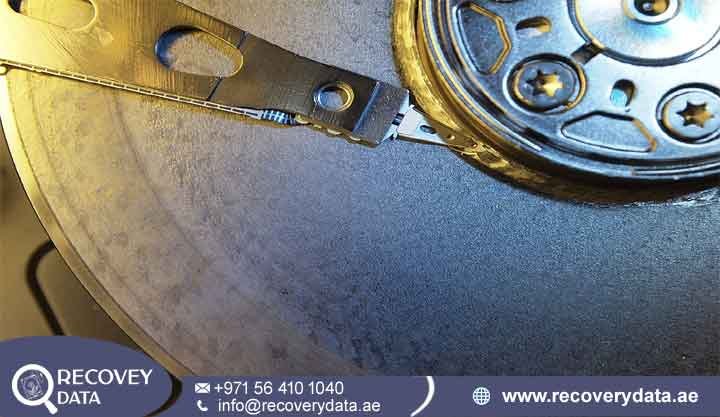
To understand why hard drives fail, it helps to understand how they store and access data. Traditional HDDs use magnetic platters that rotate at high speeds. Read/write heads move across those platters and locate specific areas where information resides. A spindle motor keeps the platters rotating, while an actuator assembly moves the heads with extreme precision. These components operate within very small tolerances. Even a small mechanical problem can affect the drive’s ability to read information. A damaged head can struggle to access specific sectors. A weak motor can prevent the platters from reaching the required operating speed. Damaged platters can create unreadable areas and widespread file corruption.
SSDs use a different architecture. They store information in NAND flash memory rather than magnetic platters. An SSD contains no spinning motor or moving read/write head. Instead, a controller manages the flash memory and distributes data across memory cells. Both technologies have advantages, but neither is immune to failure. HDDs face mechanical and magnetic risks. SSDs face controller, firmware, electronic, and flash-memory risks. Environmental conditions can also affect both types of storage. Every storage device has a practical service life. Usage patterns, temperature, power quality, physical handling, and workload can influence that lifespan. Understanding these factors makes it easier to identify common hard drive failure causes and take preventive action.
Category 1: Physical and Mechanical Triggers
Traditional Hard Disk Drives rely on several mechanical components that operate continuously during normal use. The platters spin thousands of times every minute. The actuator moves the heads across the platter surfaces. The motor and bearings must maintain consistent operation. Because these components move continuously, mechanical wear remains one of the major causes of HDD failure. Physical damage can accelerate that wear and create sudden problems.
Hard Drive Mechanical Failure and Spindle Motor Seizure
Traditional HDDs use spindle motors to rotate magnetic platters. Consumer drives commonly operate at speeds around 5,400 or 7,200 RPM. Some enterprise models operate at higher speeds. The motor must maintain a stable rotational speed so that the read/write heads can locate data accurately. Years of operation can place stress on the motor bearings. Heat can accelerate lubricant degradation and material expansion. Dust, vibration, manufacturing defects, or physical impact can also contribute to mechanical deterioration.
A failing motor may produce unusual sounds during startup. The drive may attempt to spin up and then stop. It may repeatedly start and shut down. In some cases, the computer may fail to detect the drive because the platters never reach a stable operating speed. When the motor completely seizes, normal software cannot restore operation. The computer may show the drive as missing even though the storage media still contains important information. Professional data recovery specialists may need to diagnose the mechanical assembly and determine whether the stored data remains accessible.
The Destructive Force of a Hard Drive Head Crash
The read/write heads inside an HDD operate extremely close to the platter surface. During normal operation, the heads move across the platters without directly touching them. This design allows the drive to read and write information at high speeds. A physical impact can disturb this delicate operation. If the drive receives a strong shock while the platters are spinning, the heads may contact the platter surface. This event can damage the magnetic recording layer and create unreadable areas.
A hard drive head crash can produce severe data loss. The drive may begin clicking, grinding, or repeatedly attempting to initialize. In more serious cases, the computer may stop detecting the device completely. Do not continue using a drive after a suspected head crash. Additional operation can cause the damaged head to contact more areas of the platter. That process can expand the damaged region and make recovery more difficult.
Physical Hard Drive Damage from Drops and Impact
Portable external hard drives face a higher risk of physical impact because users frequently move them between locations. A drive can fall from a desk, slip from a bag, or receive a strong impact during transportation. Even a short fall can affect internal components. The impact can damage the actuator assembly, disturb head alignment, damage the motor, or affect electronic connections. The external enclosure may look normal while the internal storage mechanism has suffered serious damage.
You should handle external HDDs carefully during operation. Avoid moving them while the platters are spinning. Use protective cases when transporting them. Keep them on stable surfaces and away from the edges of desks. If an external drive stops working immediately after a fall, do not repeatedly reconnect it. A professional diagnosis can determine whether the problem involves the enclosure, electronics, or internal mechanical components.
Category 2: Environmental and Electrical Triggers
The environment around a storage device can significantly affect its reliability. Excessive heat, poor airflow, dust, humidity, vibration, and unstable electrical power can place additional stress on hardware. These factors may not cause immediate failure in every situation. However, long-term exposure can accelerate component degradation and increase the likelihood of unexpected problems.
Thermal Stress and Hard Drive Overheating
Excessive heat can affect both HDDs and SSDs. Desktop computers with blocked airflow may allow heat to accumulate around internal components. Laptops can experience similar problems when dust blocks cooling vents or when the system operates under sustained workloads. A hot environment can increase stress on electronic components and mechanical parts. HDDs can experience changes in mechanical tolerances as temperatures rise. SSD controllers can also reduce performance when temperatures become excessive.
Hard drive overheating may appear alongside slower performance, unexpected errors, or repeated system instability. An unusually hot drive deserves attention, especially when other warning signs appear at the same time. Keep computer ventilation clear and clean dust from cooling systems regularly. Avoid placing laptops on surfaces that block ventilation openings. External drives should also have enough airflow around their enclosures. Temperature monitoring can provide useful information. If a storage device consistently operates at unusually high temperatures, investigate the cooling environment before the problem develops into a serious hardware failure.
Power Surges and Electrical Component Burnout
Storage devices depend on stable electrical power. A faulty power supply, damaged adapter, unstable wall outlet, lightning strike, or electrical surge can damage sensitive electronic components. HDDs and SSDs contain printed circuit boards with controller chips and other components. A significant voltage spike can damage these circuits and prevent the drive from communicating with the computer.
Power surge hard drive damage can happen suddenly. A drive may work normally one moment and disappear immediately after an electrical event. In some cases, the computer may no longer recognize the device at all. A surge protector can provide an additional layer of protection. A UPS can also help protect desktop computers and storage systems from power interruptions and voltage fluctuations. These measures cannot eliminate every electrical risk, but they can reduce exposure to unstable power.
Category 3: Logical and Software-Level Triggers
Not every hard drive failure involves physical damage. Logical problems can also make a healthy storage device appear inaccessible. These problems usually involve the file system, partition information, operating system, firmware, or data structures. Logical failures can occur after sudden shutdowns, interrupted file transfers, malware infections, operating-system problems, or incorrect disk operations. The drive may continue spinning normally while the computer struggles to read its contents.
Logical Hard Drive Failure and File System Corruption
Operating systems rely on file systems to organize information. NTFS, exFAT, APFS, HFS+, and other file systems use metadata and allocation structures to identify files and their locations. An unexpected shutdown during a write operation can interrupt these structures. Removing an external drive while data is transferring can create similar problems. Malware and software errors can also damage file-system information. A logical failure may cause the drive to appear as RAW. Windows may ask you to format the device. Folders may disappear or become inaccessible. The drive can also show an incorrect amount of free space.
The important point is that logical corruption does not automatically mean that the underlying data has disappeared. Recovery software may locate the original files if the storage hardware remains healthy. Avoid formatting an affected drive before checking whether important data remains on it. Formatting can change the structures that recovery tools need to analyze.
The Accumulation of Hard Drive Bad Sectors
A bad sector is a storage area that the drive cannot reliably read or write. A small number of bad sectors can sometimes appear during the normal aging process. However, a growing number of bad sectors can indicate that the storage device is deteriorating. Soft bad sectors can result from interrupted writes or logical inconsistencies. In some situations, software utilities can correct the associated file-system problem. Hard bad sectors involve physical problems with the storage media and generally cannot be repaired through normal software.
As bad sectors increase, files stored in affected areas can become inaccessible or corrupted. The operating system may repeatedly retry failed reads, which can make the entire computer appear extremely slow. If diagnostic tools show that bad-sector counts are increasing, back up important information immediately. Do not rely on a failing drive as the primary storage location.
Signs of Hard Drive Failure
Recognizing the early signs of hard drive failure can give you valuable time to protect your data. A failing storage device may display one warning sign or several symptoms at once. Pay close attention to changes that appear suddenly or continue to become worse.
Clicking or grinding noises: Repeated clicking, ticking, grinding, or scraping sounds can indicate mechanical problems. These sounds can point toward read/write head problems, motor issues, or other internal failures.
Slow performance: A failing drive may take longer to open folders, load applications, or transfer files. Repeated read attempts can create severe delays and system freezes.
Files becoming corrupted: Documents, photographs, videos, databases, and other files may suddenly become damaged. Some files may refuse to open or display incomplete content.
Frequent system crashes: Unexpected crashes, blue screens, startup errors, and repeated restarts can occur when the operating system cannot reliably access important storage sectors.
Drive not detected: BIOS, UEFI, Windows, or macOS may suddenly stop recognizing the storage device. A damaged cable or port can cause this symptom, but hardware failure can also produce it.
Missing files or folders: Data may appear to disappear when directory structures become corrupted or storage sectors become unreadable.
Bad sectors: Increasing bad-sector counts can indicate physical deterioration. A growing number of errors should prompt immediate backup and replacement planning.
Overheating: Excessive temperature can indicate poor airflow, heavy workload, mechanical resistance, or electronic problems. Persistent overheating can also accelerate hardware degradation. If you notice one or more of these symptoms, reduce your use of the drive. Avoid unnecessary scans, repairs, downloads, and file transfers. Protect the most important data first.
Early Warning Signs: How to Catch a Failing Drive Before Total Collapse
Hard drives often provide warning signs before complete failure. These signs may appear as changes in performance rather than obvious hardware faults. A computer that previously opened files instantly may suddenly take several minutes. A folder may freeze whenever you open it. File transfers may repeatedly stop and restart. Unusual sounds provide another important warning. A traditional HDD should not produce persistent clicking or grinding noises. Repeated mechanical sounds can indicate that the drive struggles to position its heads or maintain normal operation.
System errors also deserve attention. Frequent Blue Screens of Death, startup failures, missing files, and repeated disk errors can indicate storage problems. These symptoms may have other causes, but they become more concerning when they occur together. Regular health checks can help you identify problems earlier. SMART monitoring can provide information about certain drive attributes. Operating-system diagnostics can also identify file-system problems. The most important step remains simple: maintain reliable backups. A backup gives you a safety net if the drive suddenly fails. Without a backup, even a small mechanical problem can turn into a major data-loss event.
Best Practices to Prevent Premature Hard Drive Failure
Maintain Clean Thermal Environments
Keep computer vents and cooling systems free from dust. Dust buildup can restrict airflow and increase internal temperatures. Desktop users should periodically clean case filters and fans. Laptop users should avoid blocking ventilation openings. Place external drives in areas with reasonable airflow. Do not cover an active external drive with clothing, papers, or other objects. Avoid storing storage devices in extremely hot environments.
Use Uninterruptible Power Supplies (PSUs)
Protect desktop systems and important storage equipment with a reliable surge protector or UPS. A UPS can provide backup power during short interruptions and help stabilize the power supplied to connected equipment. Power protection becomes especially important for business systems, servers, NAS devices, and computers that handle critical data. A stable electrical environment can reduce the risk of sudden shutdowns and electrical damage.
Practice Safe Hardware Handling
Handle external drives carefully. Do not move an HDD unnecessarily while it is operating. Avoid placing portable drives near the edge of a desk where they can fall. Always use the operating system’s Safely Remove Hardware or Eject function before disconnecting an external drive. This allows pending write operations to finish and reduces the chance of file-system corruption.
Monitor Drive Health Proactively
Use reputable S.M.A.R.T. monitoring tools to track drive temperature, error indicators, and other available health information. Regular monitoring can help you identify changes before they become serious. Do not treat a healthy SMART status as a guarantee that the drive will never fail. Some failures occur suddenly and may not produce an advance warning. Continue maintaining independent backups even when the drive appears healthy.
Replace Aging Drives Before They Become Unreliable
Storage devices should not remain in service indefinitely simply because they still work. An older drive can become increasingly unreliable as mechanical components and electronic parts age. If a drive has started showing repeated errors, unusual noises, increasing bad sectors, or frequent disconnections, plan a replacement. Move important information to new storage before the old drive becomes inaccessible.
Frequently Asked Questions (FAQs)
Can a hard drive fail completely out of nowhere without warning?
Yes. Some failures can happen suddenly. A damaged circuit board, severe electrical event, sudden motor failure, or controller fault can make a drive stop responding without a long warning period. However, many mechanical drives show warning signs first. Slow file transfers, repeated freezes, clicking sounds, corrupted files, and boot errors can appear before complete failure. Because sudden failure remains possible, regular backups provide the best protection. Do not wait for warning signs before creating a backup of important information.
Do Solid-State Drives (SSDs) suffer from the same causes as traditional hard drives?
No. SSDs use flash memory rather than spinning platters and mechanical read/write heads. Therefore, they do not experience traditional motor seizures or head crashes. SSDs can still fail because of controller problems, firmware corruption, electrical damage, excessive heat, NAND flash wear, or power-related issues. An SSD may also fail with little or no audible warning because it has no mechanical components. A failing SSD may suddenly disappear from BIOS or the operating system. It may also become read-only, experience severe performance problems, or produce file-system errors.
What is the most common reason hard drives fail?
No single cause explains every hard drive failure. Mechanical wear, age, physical shock, overheating, electrical problems, and manufacturing defects can all contribute. For traditional HDDs, mechanical components remain an important source of failure. Motors, bearings, read/write heads, and platter surfaces can deteriorate over time. External drives also face additional risks because users transport them frequently. Drops and impacts can cause serious damage, particularly when the drive is operating.
Can power outages cause permanent hard drive damage?
A power outage can cause data corruption if the computer loses power while writing information. The interruption can leave file-system structures incomplete or inconsistent. A more serious risk can occur when unstable power or a voltage surge accompanies the outage. A sudden electrical spike can damage the drive’s PCB or controller. Use a UPS or reliable surge protection for computers that contain important data. These devices can reduce the risks associated with unstable electrical power, although they cannot prevent every possible failure.
Can overheating cause a hard drive to fail?
Yes. Excessive heat can accelerate the degradation of mechanical and electronic components. Poor airflow, blocked vents, dust, and high ambient temperatures can all increase operating temperatures. A hot drive may experience performance problems or increased mechanical stress. Long-term overheating can shorten the useful life of storage hardware. Maintain proper airflow and monitor temperatures when possible. If the drive becomes unusually hot while also showing other failure symptoms, back up important data and investigate the cause promptly.
Can bad sectors be repaired permanently?
Some logical or soft bad-sector problems can be addressed by file-system utilities. However, physical bad sectors usually indicate damage to the storage media. Software cannot restore a physically damaged platter surface. If bad sectors continue increasing, the drive may be deteriorating. Back up important information and plan to replace the device. Professional data recovery can sometimes extract information from drives with severe bad sectors. Specialists may use controlled imaging techniques to read as much recoverable data as possible before the drive deteriorates further.
Contact Us
If your hard drive has failed or shows signs of failure, our data recovery specialists can help. Early assessment can improve the chances of protecting important files before the storage device becomes completely inaccessible.
Our team can assist with failed HDDs, clicking drives, bad sectors, corrupted file systems, inaccessible storage, accidental deletion, physical damage, and other data-loss situations. If your drive contains critical information, avoid unnecessary repair attempts and contact a professional recovery specialist.
Website: https://recoverydata.ae
Email: info@recoverydata.ae
Mobile: +971 56 410 1040