
When your computer recognizes a storage drive but blocks access to your files, panic can set in quickly. A multimedia professional in Dubai Media City may need vital client project archives. A corporate enterprise in Business Bay may depend on a critical financial database. Hard Drive Detected But Cannot Open Files Dubai. Losing access to either can disrupt operations. Seeing the drive spin up or appear in your operating system can create a false sense of security.
At Recovery data Many users assume that hardware detection means their files remain safe. However, a storage device can mount or register correctly while its file system, directory tree, or partition structure suffers severe damage. If your storage device behaves abnormally, you need to recognize the warning signs. You also need to know which actions to avoid. The right response can improve your chances of successful file recovery and prevent further data loss.
Why Your Hard Drive is Recognized But Inaccessible
Windows or macOS may detect an internal HDD, external hard drive, or portable solid-state drive but still fail to open it. This problem rarely comes from a simple software glitch. The operating system may identify the storage device at the hardware level. However, it may fail to access the file system, partition structure, directory information, or individual sectors. You may see the drive in File Explorer, Disk Management, Finder, or another system utility. Yet the system may refuse to open folders or files. You may also see messages such as “Access Denied,” “The parameter is incorrect,” or “You need to format the disk before you can use it.” Some drives load extremely slowly. Others may freeze the computer or cause repeated crashes when you try to access them.
Storage media failures generally fall into two major categories: logical failures and physical failures. You need to understand the difference because each problem requires a different recovery approach. A logical failure affects how the operating system organizes or interprets information. A physical failure affects the hardware that stores or reads the data. Both problems can also occur together. For example, a hard drive may develop bad sectors that prevent the system from reading important file system metadata. The resulting errors can then cause file system corruption. Repeated attempts to repair a physically failing drive with conventional software can also increase the damage. These tools may place additional stress on hardware that has already started to fail.
Logical Failures
A logical failure does not necessarily damage the physical mechanics of the drive. Instead, corruption affects the organizational data map that tells the operating system where files and folders exist. A storage device does not store files in a format that the operating system can automatically understand without additional information. The drive relies on a structured file system and metadata. These structures record file names, folder locations, file sizes, permissions, allocation status, and storage locations. When this information becomes corrupted, the operating system may detect the drive but fail to display its contents.
Logical failures can affect the Master File Table (MFT) on NTFS-formatted drives. They can also damage partition tables, file allocation structures, directory entries, and other file system metadata. An interrupted write operation can also corrupt important structures. Malware can cause similar problems. Sudden power loss can interrupt updates before the drive completes them. In each case, the physical data may remain on the storage media even though the operating system can no longer locate it correctly.
Physical Failures
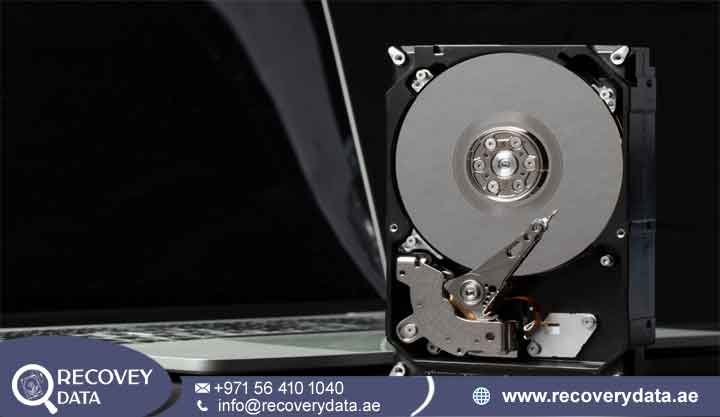
A physical failure occurs when hardware components responsible for storing, reading, or communicating data begin to malfunction. Unlike a purely logical problem, physical failure can directly affect the internal components of the storage device. Traditional hard disk drives contain several mechanical and electronic components. These include magnetic platters, read/write heads, spindle motors, actuators, firmware components, and printed circuit boards. Problems with any of these components can affect data access. Common HDD failures include degraded magnetic media, localized bad sectors, spindle motor problems, damaged read/write heads, actuator faults, firmware problems, and PCB failures. Solid-state drives can experience different physical problems.
These may include degraded NAND flash memory cells, controller failure, power-related damage, firmware faults, or electronic component failure. Bad sectors represent one of the most common warning signs of a physically deteriorating HDD. A bad sector refers to an area of storage that the drive cannot reliably read or write. As the number of unreadable sectors increases, the drive may become slower and less stable. Eventually, the operating system may stop accessing the stored files.
The Dangers of Automated Repair Tools
When you connect an inaccessible drive, the operating system may recommend diagnostic utilities such as CHKDSK. Windows may also suggest formatting the volume to resolve the detected error. These recommendations can help with ordinary file system problems. However, they cannot always determine whether the storage hardware itself has started failing. The operating system may see a file system error without recognizing the physical problem causing it. Following an automatic repair prompt without first checking the drive’s condition can therefore increase the risk of data loss. Running automated error-checking tools on a failing or severely corrupted drive can create additional problems. These utilities attempt to identify file system inconsistencies. They may then modify file system structures to restore normal access. Those changes can affect file references, directory entries, allocation information, and other structures that a professional recovery process may need. If the drive contains important data, avoid running repair commands repeatedly. First determine whether the problem involves logical corruption, physical damage, or both.
Common Symptoms of Inaccessible Hard Drives We Fix in Dubai

Storage devices can show failure in many different ways. The symptoms often depend on the file system, partition structure, firmware, hardware components, or physical storage media. A drive may appear normal at first but fail when you open a folder or transfer files. Windows or macOS may also show warning messages, incorrect capacity information, or unusually long loading times. Identifying the specific symptom helps engineers understand the underlying problem. It also helps them choose a safer recovery approach without making unnecessary changes to the original data.
Hard Drive Detected But Showing No Files or Folders
You open File Explorer or Finder and see the drive letter or volume name. However, the drive appears empty when you open it. The capacity may show that the drive contains data, yet no files appear on screen. This situation can feel confusing because the operating system clearly recognizes the storage device. However, the system may no longer understand the directory structure. Several problems can cause this behavior. Severe file attribute corruption can hide files. Malware can modify file attributes. Damaged directory entries can prevent the operating system from displaying folders. File system corruption can also affect the file catalog. The files may still exist physically on the storage media even when the operating system cannot locate them. Avoid copying new data to the affected drive. New writes can overwrite areas that contain recoverable information.
Access Denied Errors on External and Internal HDDs
You may try to open a drive or folder and receive the message: “Location is not available. Access is denied.” Permission changes can cause this error. Operating system updates may alter ownership settings. A damaged user profile or changed security configuration can also trigger the problem. However, file system corruption can produce similar symptoms. The operating system may fail to read security descriptors, directory information, or allocation structures correctly. The problem can affect both external and internal HDDs. It may also appear after you move a drive between different computers or operating systems. Changing ownership or permissions may solve a simple access-control problem. However, those changes can complicate diagnosis when the drive also has file system corruption. If the drive contains important files, determine the actual cause before making extensive changes.
Prompt Asking to Format the Drive Before Use
One of the most alarming situations occurs when Windows displays this message: “You need to format the disk in drive X: before you can use it. Do you want to format it?”
Never click format if the drive contains important data.
Windows usually displays this prompt because it can detect the storage device but cannot correctly interpret its file system. The operating system may fail to identify the volume as a normal NTFS, FAT32, or exFAT partition. It may instead classify the volume as unknown or RAW. Formatting creates a new file system and can make the drive usable again. However, the process can modify important structures that a recovery process may need. The original files may still exist on the storage media. Avoid formatting the drive until you understand why Windows cannot read the existing file system.
Drives Suddenly Changing to RAW File System Format
If Disk Management shows your drive as RAW instead of NTFS or exFAT, Windows has lost the ability to interpret the file system layout. A RAW designation does not automatically mean that the files have disappeared permanently. It usually means that Windows cannot recognize the expected file system structures or read the metadata required to mount the partition. Windows cannot normally open a RAW partition through File Explorer. It may repeatedly ask you to format the volume. The underlying data may still remain on the storage media. However, continued use can overwrite recoverable information. Avoid formatting, initializing, or writing new data to the affected partition.
Leading Causes of File System Corruption and Inaccessibility
File system corruption usually has an underlying cause. Storage devices in a fast-paced business and residential hub like Dubai often handle heavy workloads and frequent data transfers. Power fluctuations, unsafe disconnections, physical wear, and other events can also affect storage reliability. External hard drives, internal HDDs, SSDs, USB storage devices, and other media can develop problems over time. Some failures occur suddenly after one unexpected event. Others develop gradually as small errors accumulate.
Unsafe Removal: Disconnecting an external hard drive or flash storage without safely ejecting it can interrupt active write operations. Modern operating systems may continue writing cached information even after a transfer appears complete. Removing the device too early can therefore corrupt important file system structures.
Bad Sectors: Hard disk drives can develop bad sectors as they age. Physical wear, damaged heads, magnetic surface deterioration, and other hardware problems can create unreadable areas. When important file system structures occupy those areas, the drive may become inaccessible.
Sudden Power Outages: Power surges, unexpected shutdowns, faulty adapters, and accidental cable disconnections can interrupt storage operations. If the drive loses power while writing data, the file contents and file system metadata may become inconsistent.
Malware and Ransomware: Malware can deliberately interfere with storage structures and prevent users from accessing important information. Some malware modifies file attributes, damages file headers, encrypts files, or interferes with directory structures. Ransomware can encrypt large numbers of files while leaving the storage device fully detectable by the operating system.
Can Files Be Recovered From an Accessible Hard Drive?
Yes. In many cases, a hard drive that Windows or macOS detects but cannot open may still contain the original user data. Documents, databases, photos, videos, spreadsheets, and other files can remain physically present on the storage media. An inaccessible drive does not automatically mean that the system has permanently deleted the files. The operating system may simply fail to interpret the file system or locate the correct partitions and metadata. File systems use structures that tell the operating system where files exist, how large they are, which folders contain them, and which sectors store their data. Bad sectors, unsafe removal, sudden power loss, malware, partition errors, and other failures can corrupt these structures. When metadata becomes damaged, files may disappear from File Explorer or Finder even though their underlying data remains. If the files matter, avoid formatting the drive. Do not install new software on the affected drive. Avoid repeated repair attempts and unnecessary scanning. Minimize additional read and write activity until you understand the condition of the storage device.
Professional Hard Drive Recovery Process at Recovery Data Dubai
When a hard drive contains critical personal or business data, risky DIY fixes can reduce your recovery options. Repeated repair commands, formatting attempts, and forced operation can increase the problem. Recovery Data follows an engineering-led workflow. The team first identifies the cause of failure. Engineers then protect the original media and choose a recovery method based on the drive’s condition.
Step 1: Free Diagnostic Evaluation
We begin with a comprehensive diagnostic assessment at our Dubai facility. Our engineers examine the storage media and determine whether the problem appears logical, firmware-related, electronic, or physical. The diagnostic process can include drive identification, partition analysis, file system checks, sector readability tests, and other storage-health indicators. This assessment helps us understand the severity of the failure before recovery work begins. After the evaluation, we provide a recovery report. The report explains the identified problem, recommended recovery approach, and expected costs. You can then make an informed decision before we begin the recovery procedure.
Step 2: Cleanroom Intervention (If Required)
Diagnostics may reveal mechanical clicking, scraping sounds, unstable reads, damaged read/write heads, or other signs of internal mechanical failure. In such cases, we transfer the drive to our certified Class 100 Cleanroom environment. Opening a hard drive outside a controlled environment can expose internal platters to airborne particles. Contamination can increase the risk of additional damage. Inside the cleanroom, specialized engineers can safely access internal components when necessary. They can perform controlled procedures involving damaged heads, motors, and other mechanical components. The objective is to stabilize the drive and provide the recovery team with controlled access to the stored data. Engineers avoid unnecessary exposure of the original media to additional risks.
Step 3: Sector-by-Sector Cloning
We create a bit-stream, sector-by-sector clone or image of the drive using specialized hardware-level imaging tools. This process differs from ordinary file copying. instead of copying files through the operating system, the recovery system attempts to capture readable information directly from storage sectors. Engineers can carefully manage sectors that respond slowly or contain read errors. This approach becomes particularly important when bad sectors or unstable hardware affect the drive. Repeated access to an unstable device can increase deterioration. After creating a suitable working copy, engineers can perform recovery operations on the clone. This approach reduces the need to repeatedly access or modify the original media.
Step 4: Logical Reconstruction and Data Verification
After creating a stable clone or image, our engineers analyze the accessible data structures. The process may involve rebuilding damaged file system information, reconstructing partition tables, analyzing corrupted metadata, and recovering the original folder hierarchy. Engineers organize recovered files according to their original structure whenever possible. This approach makes it easier to review documents, photos, videos, databases, and other important information. We also perform data integrity checks. These checks help determine whether recovered files remain readable and usable. After completing the recovery process, we transfer the recovered data to a secure verification medium. The client can then review the recovered information before final delivery.
Supported Storage Brands and Technologies
Recovery Data handles storage media from major manufacturers. Our team supports different storage technologies, physical form factors, interfaces, and file systems. This broad coverage allows us to assist individual users, professionals, and corporate enterprises throughout the UAE. We can work with devices used in personal computers, laptops, workstations, servers, external enclosures, and business storage environments. The recovery approach depends on the specific technology and condition of each device.
Hard Drive Brands: Seagate, Western Digital (WD), Toshiba, LaCie, G-Technology, Samsung, Transcend, and HGST. Our services cover many models from these manufacturers. These include desktop drives, laptop drives, portable external storage, and specialized storage devices. Each manufacturer and model can use different firmware configurations and internal components. Each model can also show different failure characteristics. Proper identification and diagnosis therefore play an important role before recovery work begins.
Storage Technologies: Internal 3.5-inch desktop drives, 2.5-inch laptop drives, portable external USB hard drives, enterprise SCSI and SAS server drives, solid-state drives (SSDs), and multi-drive external enclosures. We support both consumer and business-grade storage devices. Our team can address logical corruption, damaged partitions, inaccessible volumes, bad sectors, firmware problems, electronic failures, and mechanical faults.
File Systems: NTFS, FAT32, exFAT, HFS+, APFS (macOS), EXT2/3/4 (Linux), and VMFS (VMware virtualized environments). File system compatibility plays an important role in data recovery. Different operating systems organize and manage information in different ways. Our engineers analyze the relevant file system structures. They then determine whether partitions, directories, metadata, and individual files can be reconstructed.
Frequently Asked Questions
Should I format my hard drive when Windows asks me to?
Never format an inaccessible drive if it contains important data. Formatting creates a new file system and can overwrite or alter structures that recovery specialists may need. Stop using the drive and assess the problem before taking further action.
Why can my computer see the drive capacity as 0 bytes or RAW?
A 0-byte or RAW status means the operating system cannot properly interpret important storage structures. Severe logical corruption can cause this problem. Firmware issues, damaged partition information, controller problems, and physical drive failures can also produce similar symptoms.
How long does file system corruption recovery take in Dubai?
Standard diagnostics at Recovery Data typically take 24 hours. Logical corruption cases usually require between 2 and 5 business days for full recovery. The exact timeframe depends on drive capacity, damage severity, and recovery complexity. Emergency recovery options can support urgent business requirements.
Is it safe to use commercial data recovery software for an access denied error?
Software may help when a simple permission problem causes the error. However, software scanning can create additional stress when the drive has failing sectors or hardware degradation. A failing HDD may struggle to complete repeated read operations. Extensive scanning can therefore increase mechanical stress and reduce the drive’s stability. If the data has high value, consider professional assessment before running intensive recovery software.
Secure Data Recovery Services in Dubai and the UAE
Recovery Data provides specialized recovery solutions for clients across Dubai, Abu Dhabi, Sharjah, Ajman, Umm Al Quwain, Ras Al Khaimah, and Fujairah. We maintain strict data confidentiality protocols throughout the evaluation and recovery process. These procedures help protect sensitive personal files, business documents, databases, and other corporate assets. If your hard drive appears in Windows or macOS but cannot open your files, avoid risky repair attempts. Do not format the drive. Avoid unverified recovery tools and repeated automated repair commands.
Contact Recovery Data for a professional data recovery assessment.
Email: info@recoverydata.ae
Phone: +971 56 410 1040