
Hearing an unusual noise from your computer or external backup drive is never reassuring, but a clicking sound is a definitive warning sign of a serious hardware issue. Often referred to as the “click of death,” this mechanical noise indicates that your storage device is struggling or failing to read and write data properly. For individuals and businesses in the UAE relying on external backups or desktop systems, understanding what causes this sound, what it means for your files, and how to handle the situation can mean the difference between recovering your precious data and losing it forever. When a storage media component begins to emit sharp, repetitive sounds, the clock starts ticking on your valuable files. Many people ignore these warning sounds or attempt quick software fixes. Such actions can accelerate damage to the underlying magnetic surfaces.
Digital storage failure often strikes at the worst possible moment. It may happen right before an important project deadline or when you need years of family photos. Your computer’s storage drive is a precision-engineered machine that operates within microscopic tolerances. When a physical component fails inside the sealed aluminum enclosure, forceful troubleshooting can make the situation worse. Data recovery professionals see many drives that could have remained recoverable if the owner had powered down the machine as soon as the noise appeared. A sudden hardware malfunction requires a calm and methodical approach. Instead of panicking, learn what causes the clicking sound and how the internal components work. Understanding the interaction between read/write heads and spinning platters can help you recognize a serious failure. You should also know the warning signs that often appear before complete drive failure. Knowing how professional recovery facilities operate in the United Arab Emirates can also help you choose the safest next step when your data becomes inaccessible.
Understanding the Sound: Why Is Your Hard Drive Clicking?
To understand why a hard drive clicks, it helps to look inside a traditional Hard Disk Drive (HDD). Unlike Solid State Drives (SSDs), which use flash memory chips, mechanical HDDs store data on rapidly spinning magnetic platters.
The Mechanics of a Click: Read/Write Heads and Platters
Data is read from and written to these platters by microscopic read/write heads mounted on an actuator arm. This arm moves back and forth across the spinning platters at incredible speeds. The heads maintain a very small distance from the platter surface during normal operation. This precise movement allows the drive to locate and read the magnetic information that represents your files.
When a drive begins clicking, you are usually hearing the actuator arm repeatedly reset or search for the correct track. The drive may fail to locate important track data or communicate correctly with its firmware. It may also strike an internal limit because it cannot complete its normal calibration process. Think of a tiny phonograph needle jumping across a warped record. The actuator arm keeps searching for orientation information that it cannot find because of internal component degradation, electrical instability, or physical surface damage. This repeated mechanical movement produces the familiar clicking or ticking sound.
What is a “Head Crash” and Why Does It Happen?
A clicking sound frequently points to a hard drive head failure. If a read/write head becomes damaged, misaligned, or drops onto the spinning platter surface, it can cause what data recovery specialists call a “head crash.” When the head scrapes across the magnetic coating, it creates physical damage and microscopic debris. This process can produce the rhythmic clicking or ticking noise associated with serious mechanical failure.
In everyday terms, a head crash resembles a catastrophic mechanical accident inside your computer. The clearance between a hard drive head and its spinning platter remains extremely small. Shock, vibration, thermal expansion, or component wear can cause the head slider to contact the platter. The platter may spin at 7,200 revolutions per minute, so even brief contact can cause serious damage.
The head can dig a microscopic trench into the magnetic data layer. That damaged area may contain operating system files, family memories, business spreadsheets, databases, or other important information. Once the drive controller detects that it cannot read a sector correctly, it may command the actuator arm to retry the operation. The drive then repeats the process and creates the familiar clicking loop. Each additional attempt can place more stress on the damaged components.
Key HDD Failure Symptoms Associated with Clicking
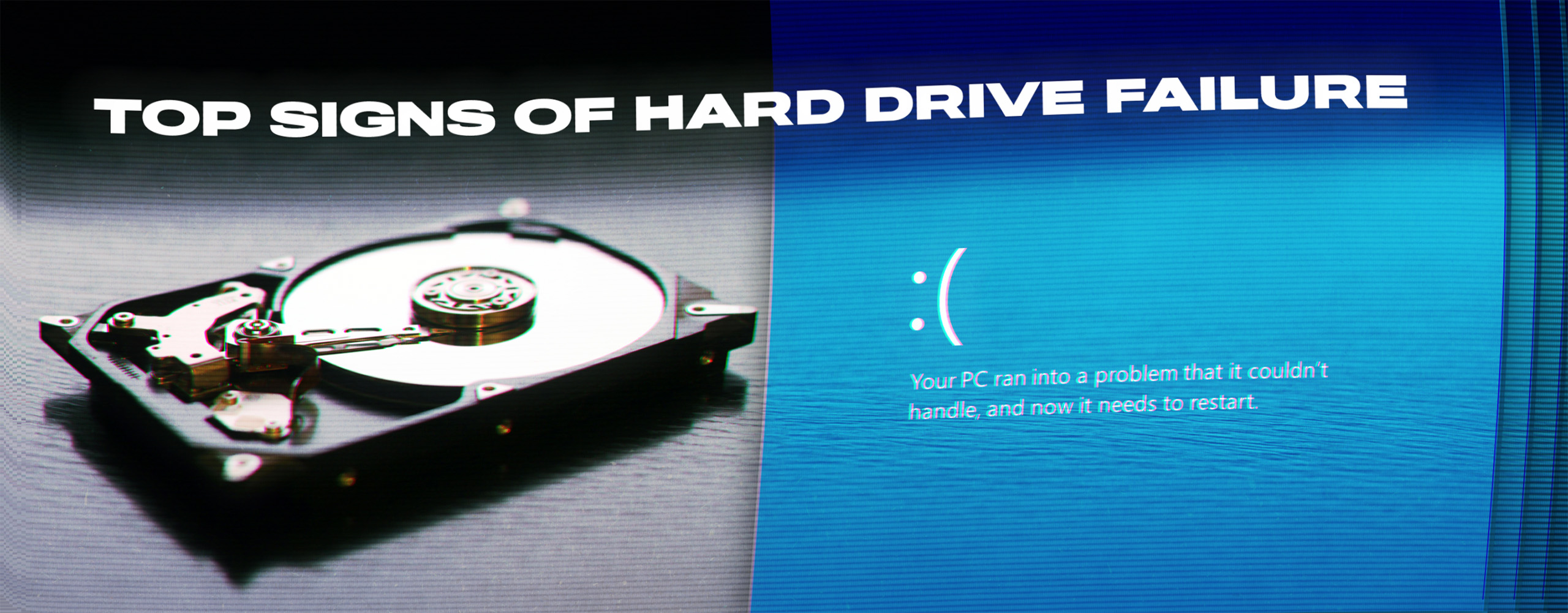
A clicking sound rarely happens in isolation. Other symptoms often appear alongside the noise. These signs can indicate imminent or total data loss:
Drive Disappears or Fails to Mount: Your operating system may suddenly disconnect the drive. It may also fail to display the device in File Explorer or Finder. You might hear the drive spin up briefly and then hear repeated clicks. The device may then disappear because the operating system loses communication with the controller chip.
Endless Boot Loops or BIOS Not Detecting the Drive: If your operating system runs from the clicking drive, your computer may freeze during startup. It may enter an automatic repair loop or fail to detect a bootable device in the BIOS/UEFI. The motherboard waits for the storage drive to respond, but the drive cannot complete the required initialization process.
Extremely Slow Performance or System Freezes: The system may hang when you access certain folders or files. The drive may repeatedly attempt to read damaged sectors. Background processes can freeze, mouse movement may become slow, and applications can stop responding. The operating system may remain stuck while it waits for the drive to complete unsuccessful read operations.
Common Causes of Hard Drive Mechanical Failure
Mechanical hard drives are precision instruments built with microscopic tolerances. Several physical factors can cause these devices to fail. Some failures develop gradually through normal wear, while others happen suddenly after physical impact or electrical damage.
Damaged Read/Write Heads
Wear and tear, manufacturing defects, or mild impacts can weaken the delicate spring arms that hold the read/write heads. These components must maintain precise positioning above the platters. Thousands of hours of continuous operation can contribute to mechanical wear. Metal fatigue can also affect the suspension arm and change the head’s alignment.
Once the head can no longer maintain stable movement, it may struggle to read data accurately. In severe cases, the head can contact the platter surface. That contact can create additional physical damage and produce the clicking sounds associated with a failing device. A damaged head therefore requires careful handling because repeated operation can worsen the condition.
Hard Drive Motor Failure and Spindle Issues
If the spindle motor that spins the platters seizes or fails to reach the proper revolutions per minute (RPM), the read heads cannot calibrate correctly. The drive may then produce initialization errors and mechanical clicking. Bearings inside the motor can wear over time. They can also lose lubrication or seize because of physical damage and other mechanical problems.
The platters need to maintain a smooth and constant rotation. Without stable rotation, the read/write heads cannot maintain the required flying height. The drive control board may then enter a repetitive reset cycle as it tries to initialize the device. This repeated cycle can produce clicking or ticking sounds.
Hard Drive Platter Damage (The Worst-Case Scenario)
When physical trauma causes the read heads to severely gouge the magnetic platters, the data stored on those scratched tracks can become physically damaged. Minimizing runtime becomes critical because continued operation can spread the damage. Every additional second of operation can expose more of the platter surface to a damaged head.
A drive with serious platter damage presents a much more difficult recovery situation. Engineers may need to identify readable areas and avoid heavily damaged regions. If the drive continues operating without proper control, the damaged head can spread debris across the platter surface. This can turn a potentially recoverable situation into a much more serious data loss event.
Physical Damage from Drops, Shocks, or Power Surges
Accidental drops can cause serious damage to an external HDD, especially when the drive remains powered on during the impact. Electrical surges can also damage the Printed Circuit Board (PCB) and other internal components. A sudden physical jolt can affect the actuator assembly, internal chassis, or delicate head sliders.
Power-related damage can create another set of problems. A surge can damage electronic components and prevent the drive from communicating correctly with the computer. Mechanical and electrical problems can also occur together. For this reason, a professional diagnostic assessment can help identify the actual cause before anyone attempts a recovery procedure.
What NOT to Do If Your Hard Drive Is Clicking (Critical Warnings)
When panic sets in, it is easy to follow outdated or dangerous internet myths. A clicking hard drive needs careful handling. Avoid the following actions immediately:
Stop Using the Drive Immediately: Every second the drive remains powered on can allow failing heads to cause further platter damage. Disconnect the power cable or unplug the external enclosure right away. Do not keep restarting the computer in the hope that a fresh reboot will solve the mechanical problem. Repeated operation can increase the damage and reduce the chances of successful recovery.
Avoid DIY “Fixes” Like the Freezer Trick: Putting a hard drive in a freezer can introduce condensation. Moisture can damage internal components and contaminate the platter surfaces. Do not slap, shake, drop, or hit the drive to “reset” a stuck component. Internet forums often promote these methods as temporary fixes, but they can create additional mechanical problems and increase the risk of permanent file loss.
Do Not Run Chkdsk or Data Recovery Software: Utility software and command-line repair tools such as chkdsk or fsck can force the drive to perform extensive read and write operations. A mechanically damaged drive may not tolerate this additional workload. Software cannot repair broken read/write heads or straighten damaged actuator arms. Running aggressive scans can place more stress on the motor and damaged platter areas.
Can Data Be Recovered from a Clicking Hard Drive?
Yes, but not through software. Clicking noises usually indicate a physical or mechanical failure. Such failures require specialized hardware intervention rather than ordinary software commands.
The recovery outcome depends on the exact cause of the clicking, the condition of the read/write heads, and the condition of the magnetic platters. Engineers must first determine whether the platter surface remains readable. They can then choose an appropriate recovery strategy based on the physical condition of the drive.
The Role of a Certified Cleanroom Hard Drive Recovery Environment
Professional technicians must open the hard drive inside an ISO-certified Class 100 cleanroom. This specialized workspace limits airborne dust and other particles that could settle on the exposed magnetic media. The clearance between a hard drive head and its platter remains extremely small. Even a tiny particle can interfere with the head and platter during recovery work.
A normal room contains many airborne particles that users cannot see. Opening a hard drive in that environment can therefore introduce unnecessary contamination. Cleanrooms use advanced HEPA and ULPA filtration systems to maintain controlled conditions. These systems help create a suitable environment for physical hard drive recovery and reduce the risk of additional contamination during mechanical procedures.
Head Replacement and Mechanical Donor Parts Procedures
In a cleanroom, specialists use compatible donor parts to replace damaged read/write actuator assemblies. Once the drive achieves stable mechanical operation, technicians can bypass damaged sectors and begin controlled sector-by-sector data extraction. The recovery team does not simply replace the failed part and return the drive to normal everyday use. Instead, technicians use the temporary repair to access and extract the stored information.
Sourcing a compatible donor drive requires technical expertise. Specialists may compare firmware versions, manufacturing dates, model numbers, and country of origin. They may also examine exact batch codes and other drive characteristics. Technicians use specialized micro-tools and high-powered microscopes when handling fragile head assemblies. This careful approach helps them create a binary image of the available data while reducing unnecessary contact with the sensitive magnetic platters.
Professional Hard Drive Diagnostic Service in the UAE
For businesses and residents dealing with sudden storage failure in Dubai, Abu Dhabi, and across the UAE, professional intervention is vital. A clicking drive requires more careful handling than a drive that has simply lost a partition or accidentally deleted files.
Recovery Data provides secure, transparent evaluations for different types of mechanical failures. These cases can involve portable external HDDs, desktop drives, or complex enterprise storage arrays. Every device receives careful attention during the diagnostic process. Specialists use appropriate cleanroom and diagnostic equipment to determine the extent of internal damage and evaluate recovery feasibility.
Your files may include irreplaceable family memories, corporate records, financial information, databases, or project files. For that reason, the recovery process should begin with a controlled evaluation rather than repeated trial-and-error attempts. A proper diagnosis can identify the likely failure and help determine the safest path toward data extraction.
Frequently Asked Questions
Is a clicking hard drive always a sign of permanent data loss? Not necessarily. The drive hardware may have suffered permanent damage, but the stored data can sometimes remain recoverable. Professional data recovery specialists can often work around damaged read/write components in a cleanroom environment. They can then attempt to extract the available files from the affected drive.
Can I use data recovery software if my hard drive is making clicking noises? No. Data recovery software depends on the drive’s firmware and read heads functioning well enough to access the storage media. A clicking drive often has a mechanical problem that software cannot repair. Running a long software scan can force the damaged drive to perform repeated read operations. This may increase platter damage and reduce the chances of recovery.
How long does a professional hard drive diagnostic take in Dubai? Standard diagnostics typically take between 24 to 48 hours. During this stage, specialists assess the mechanical condition of the drive and determine the likely recovery requirements. The exact timeline can vary depending on the drive’s condition and the complexity of the failure.
Where can I securely submit a failing hard drive for evaluation in the UAE? You can bring your device directly to our facility in Dubai or contact our team to arrange secure pickup and drop-off options across Dubai, Abu Dhabi, Sharjah, and other emirates. Proper packaging and careful transportation can help prevent additional physical damage before the device reaches the recovery facility.
Secure Your Files with Expert Assistance
If your storage device has started making clicking or ticking noises, do not risk your critical documents, memories, or business databases with trial-and-error fixes. A clicking sound can indicate a serious mechanical problem, and continued operation can increase the damage inside the drive.
Power down the device and avoid unnecessary attempts to restart it. Do not open the drive outside a controlled cleanroom environment. Professional assessment can help identify the failure and determine whether the stored information remains recoverable.
Contact Recovery Data for a professional data recovery assessment.
Email: info@recoverydata.ae
Phone: +971 56 410 1040
Location: Dubai, UAE