
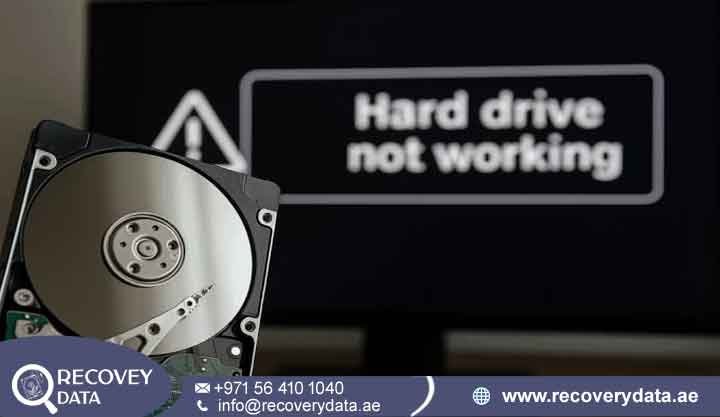
Finding out that your storage drive has suddenly stopped working can be one of the most stressful experiences in modern computing. Whether you use an external hard drive with your home laptop or a primary hard disk in an office workstation, sudden hard drive failure can bring important tasks to a complete halt. A failed hard drive can make important documents, business records, photographs, videos, databases, and project files suddenly inaccessible. The situation becomes even more concerning when the computer does not recognize the drive or starts producing unusual sounds.
When a hard drive stops working without warning, panic often sets in. Users immediately wonder: Why did my hard drive stop working? Can the data still be recovered? Is the drive permanently damaged? Should they try data recovery software, CHKDSK, formatting, or another troubleshooting method? In many cases, a drive that appears completely dead may still contain recoverable data. However, the chances of successful hard drive data recovery depend heavily on the type of failure and what you do immediately afterward. Understanding the underlying mechanics of storage failure helps demystify the problem. Below, we explain the major hard drive failure causes, common warning signs, actions that can make Recovery Data more difficult, and when you may need professional data recovery services.
Introduction: The Shock of a Sudden Hard Drive Failure
Modern storage devices, including traditional Hard Disk Drives (HDDs) and Solid-State Drives (SSDs), are sophisticated pieces of technology. They are designed to handle thousands of read and write operations every day. Despite their reliability, storage devices can eventually develop physical, electrical, firmware, or logical problems. A hard drive does not always provide a clear warning before failing. Some drives gradually develop bad sectors or performance problems. Others can stop responding after a power event, component failure, firmware problem, or mechanical breakdown.
When a hard drive suddenly stops working, the failure is usually connected to a specific problem within the device. The issue may involve the drive’s mechanical components, circuit board, firmware, file system, or storage media. Identifying the likely cause is important because different failures require different data recovery methods. A drive with a corrupted file system may require logical recovery, while a clicking HDD may require specialized mechanical intervention.
The Urgency of Sudden Data Loss in the UAE
For professionals, students, families, and businesses across Dubai and the wider UAE, a dead hard drive can represent much more than a hardware problem. It can mean inaccessible financial records, customer information, contracts, accounting files, project documents, photographs, videos, or business databases. For companies, even a few hours of downtime can interrupt daily operations. A failed workstation hard drive may prevent an employee from accessing essential files. A damaged server drive can affect multiple departments at the same time.
Personal users can also face significant consequences. A drive may contain years of family photographs, educational documents, videos, and personal records that do not exist anywhere else. When unexpected data loss occurs, the first few decisions matter. Continuing to power a physically damaged drive, repeatedly attempting repairs, or formatting the device can reduce the possibility of recovering important information.
Mechanical vs. Solid-State: Why Do Drives Die Abruptly?
Traditional HDDs store information on magnetic platters that rotate at high speeds. Read/write heads move across these platters to access individual areas of stored information. Since HDDs contain moving components, they can experience mechanical wear, impact damage, head failure, spindle problems, and other physical faults. SSDs work differently. They store information in NAND flash memory and use a controller to manage communication, data distribution, and other internal operations. Since SSDs do not contain spinning platters or moving heads, they are not affected by traditional mechanical failures in the same way as HDDs. However, SSDs can still experience sudden failure. Controller problems, firmware corruption, electrical damage, NAND degradation, and power-related failures can make an SSD inaccessible without much warning. Therefore, a drive that suddenly stops working should not automatically be assumed to have a simple software problem.
Top Causes of Sudden Hard Drive and Disk Failure

There are several reasons a hard drive or SSD can suddenly become inaccessible. These causes can generally be grouped into mechanical, electrical, logical, firmware, and media-related failures.
1. Mechanical and Physical Failures: The “Click of Death”
Traditional HDDs contain precision mechanical components that operate with extremely small tolerances. The platters spin rapidly while the read/write heads move across their surfaces. This design provides excellent storage capacity and performance, but it also creates potential points of mechanical hard drive failure.
Read/Write Head Failure
The read/write heads are responsible for reading and writing information from the magnetic platters. If the head assembly becomes damaged, misaligned, or fails to move correctly, the drive may stop reading data. Physical impact can increase the risk. Dropping an external hard drive while it is operating can cause the head to contact the platter surface. This may result in scratches, damaged magnetic areas, or internal debris. A failing head may also produce repetitive clicking sounds as the drive repeatedly attempts to initialize.
Spindle Motor Failure
The spindle motor rotates the platters. If the motor becomes damaged or its bearings wear out, the platters may fail to spin correctly. In some cases, the drive may remain completely silent. In other situations, users may hear unusual startup sounds followed by repeated attempts to spin. A failed spindle motor can prevent the drive from accessing any stored data because the platters cannot reach the required operating speed.
Physical Impact and Shock
External drives are particularly vulnerable to accidental drops, knocks, and movement while operating. Although modern drives include protective features, a significant impact can still damage internal components. A drive may continue working after an accident and fail later because the initial impact caused gradual mechanical deterioration.
2. Electrical Damage and Power Surges
Electrical problems are another common reason for sudden storage failure. A drive can appear completely dead when one or more electrical components stop functioning.
Damaged PCB Components
The Printed Circuit Board (PCB) controls communication between the drive and computer. It contains various chips, controllers, diodes, and electronic components. A power surge can damage these components. In severe cases, the drive may no longer power on or communicate with the computer. This type of failure can occur after unstable electricity, lightning, defective power adapters, or damaged external power supplies.
Faulty Power Adapters and Cables
Not every apparently dead external drive has suffered internal damage. A defective power adapter, damaged USB cable, loose connector, or failed USB enclosure can also prevent the computer from communicating with the storage device. For this reason, professional diagnostics should distinguish between an actual hard drive failure and an external connectivity problem before more invasive recovery procedures are attempted.
3. Logical Corruption and File System Problems
A hard drive can remain physically functional while becoming inaccessible because its file system is damaged or corrupted. File systems such as NTFS, exFAT, and APFS contain important structures that help the operating system locate and organize files. If these structures become corrupted, the computer may report that the drive needs to be formatted or may display it as RAW. Logical corruption can occur after sudden power loss, unsafe removal, operating system crashes, malware activity, interrupted file transfers, or software errors. In some situations, the underlying files remain intact even though the operating system cannot properly interpret the file system structure.
4. Firmware Problems and Translator Damage
Storage devices contain firmware that controls important internal operations. If firmware becomes corrupted or a critical internal module becomes inaccessible, the drive may fail to initialize properly. Some HDDs can develop problems with internal firmware modules or translator information. The drive may spin normally but still fail to appear correctly in the operating system. Firmware-related problems can be complex because ordinary data recovery software may not be able to communicate with the drive correctly.
5. Bad Sectors and Degrading Storage Media
Bad sectors are areas of a storage device that can no longer reliably store or retrieve information. A small number of bad sectors may not immediately make a drive unusable. However, a growing number of unreadable sectors can indicate that the storage media is deteriorating. If the number of damaged areas increases, the drive may become extremely slow, freeze during file transfers, or disconnect unexpectedly.
Magnetic Degradation in HDDs
HDD platters can develop unreadable areas over time. The drive’s error-correction mechanisms may compensate for some damaged sectors, but this process has limitations. A drive experiencing rapidly increasing bad sectors should be treated carefully. Repeatedly scanning or copying the entire disk can place additional stress on a failing hard drive.
NAND Flash Wear in SSDs
SSD flash memory has a finite endurance. Modern SSD controllers use wear-leveling and other technologies to distribute writes across memory cells. Even so, NAND cells and controller components can eventually degrade. An SSD may become read-only, report an incorrect capacity, disconnect intermittently, or stop being recognized altogether.
Symptoms: How Your Computer Reacts When a Hard Drive Stops Working
The symptoms of hard drive failure can provide useful clues about the underlying problem. However, symptoms alone cannot always identify the exact cause.
Hard Drive Not Detected or Not Recognized by the Computer
If BIOS or UEFI does not recognize the drive, the problem may be related to the drive’s electronics, firmware, power supply, or mechanical components. A drive that is completely absent from the system should not immediately be formatted or initialized. If important data is stored on it, further troubleshooting should be performed cautiously.
Hard Drive Not Showing Up in Disk Management
Windows users may find that a drive is missing from File Explorer but appears in Disk Management. The drive may show as RAW, unallocated, offline, or without a usable partition. This can indicate partition-table damage, file-system corruption, connection problems, or a developing hardware issue.
The correct response depends on the drive’s condition. If the disk is making unusual noises or repeatedly disconnecting, continued troubleshooting may increase the risk of further damage.
Strange Noises: Clicking, Beeping, or Grinding
Unusual sounds are among the most important warning signs of mechanical HDD failure. Clicking may occur when the read/write heads repeatedly attempt to initialize. Grinding or scraping sounds can indicate severe internal mechanical problems. Some external drives may produce beeping or repeated spin-up and spin-down sounds when they cannot operate normally. If an HDD suddenly starts making abnormal noises, shut it down rather than repeatedly reconnecting it. Continuing to power a mechanically damaged drive can worsen platter or head damage.
Extreme Slowdowns and Freezing
A failing drive may become extremely slow before completely stopping. You might notice that folders take unusually long to open, file transfers remain stuck at a very low speed, or Windows freezes whenever the drive is connected. Repeated read attempts can become especially problematic when the drive has numerous bad sectors or damaged heads.
Drive Keeps Disconnecting and Reconnecting
Another common symptom is intermittent drive detection. The computer may recognize the drive for a few seconds and then lose access to it. This can result from a defective cable or enclosure, but it may also indicate an unstable controller, failing PCB, firmware problems, or deteriorating storage media.
What NOT to Do If Your Hard Drive Stops Working
When important files suddenly become inaccessible, it is natural to search for quick fixes. Unfortunately, some common troubleshooting steps can make data recovery more difficult.
Avoid Unsupervised Recovery Software on a Physically Damaged Drive
Recovery software can be useful for certain logical data-loss situations. However, it is not a universal solution. If a hard drive has clicking heads, severe bad sectors, a failing motor, or another physical problem, repeatedly scanning the drive can place additional stress on the hardware. If the drive contains critical data and shows physical failure symptoms, professional assessment is usually safer than repeatedly running software scans.
Do Not Open a Hard Drive at Home
A traditional HDD should not be opened in an ordinary room. The internal platters and read/write heads are extremely sensitive to contamination. Dust and other particles can interfere with the head assembly and platter surface. Professional data recovery laboratories use controlled environments and specialized equipment when opening damaged drives. Engineers can then inspect internal components and perform appropriate hard drive recovery procedures.
Stop Reformatting the Drive
If Windows displays a message saying that the drive needs to be formatted, do not immediately click “Format” if the files are important. Formatting can alter file-system structures and complicate later recovery efforts. The correct recovery approach depends on whether the problem is logical, physical, or related to the partition structure.
Avoid Repeated CHKDSK Scans
CHKDSK is a useful Windows maintenance tool for certain file-system problems. However, it is not designed as a professional data recovery solution. If a drive is physically failing, CHKDSK may perform extensive read and write operations. On a deteriorating drive, this can increase stress and potentially make data recovery more difficult.
Do Not Keep Restarting a Failing Hard Drive
Repeatedly turning a failing HDD on and off may increase mechanical wear. If the drive is making clicking or grinding sounds, minimize further operation until its condition has been assessed.
Can Data Be Recovered From a Hard Drive That Suddenly Stopped Working?
In many cases, hard drive data recovery is possible even when a hard drive appears completely dead. However, the outcome depends on the type and severity of the failure. A drive with logical corruption may be recoverable using specialized software and imaging techniques. A drive with electronic damage may require component-level diagnostics. Mechanical hard drive failures can require controlled cleanroom procedures and replacement components. The condition of the magnetic platters or NAND memory is especially important. If the underlying storage media remains readable, specialists may be able to extract significant amounts of data. There is no universal recovery method for every failed drive. A proper hard drive diagnostic should be performed before deciding which recovery technique is appropriate.
When to Call Professional Data Recovery Services in the UAE
Professional assistance becomes especially important when a drive contains critical information and shows signs of physical or severe electronic failure. A specialist can diagnose the device before attempting extensive recovery operations. This helps prevent unnecessary procedures that could make the situation worse.
Cleanroom Recovery vs. Software-Based Recovery
Professional data recovery laboratories use specialized environments and equipment for physically damaged HDDs. A controlled cleanroom environment helps reduce contamination when engineers need to open the drive. Depending on the failure, specialists may work with damaged read/write heads, spindle motors, internal components, firmware modules, or other drive-specific problems. The objective is to stabilize the device and create a safe image or clone of readable sectors before attempting file extraction.
Recovery Data’s Secure Data Recovery Lab Process
At Recovery Data, every case should begin with a detailed diagnostic assessment. The goal is to understand why the drive stopped working before recovery procedures begin.
1. Secure Evaluation: Specialists examine the storage device and identify whether the problem is mechanical, electrical, logical, firmware-related, or caused by damaged storage media.
2. Diagnostic Reporting: The findings are reviewed to determine the likely data recovery path, expected limitations, and technical requirements.
3. Data Imaging: Where appropriate, specialized hardware is used to create a controlled image of readable sectors. This approach can reduce unnecessary stress on a failing drive.
4. Data Extraction: Once the available data has been safely imaged, specialists work to reconstruct files, folders, partitions, and other required information.
5. Verification: Recovered files should be checked for integrity and usability before being returned to the customer. This structured approach is particularly important for business hard drives, RAID systems, external HDDs, SSDs, NAS devices, and other storage media containing valuable information.
How to Prevent Sudden Hard Drive Failure
Although no storage device lasts forever, several practices can reduce the risk of unexpected data loss. Maintain at least one additional backup of important files. For business-critical information, consider following a structured backup strategy that includes both local and off-site backups. Use a surge protector or suitable power protection equipment for desktop systems and external storage devices. Avoid disconnecting drives while data is actively being transferred. Monitor unusual changes in drive performance. Increasingly slow transfers, frequent disconnections, corrupted files, unusual sounds, and repeated system errors can indicate that a drive is becoming unreliable. Most importantly, do not treat a single hard drive as the only location for irreplaceable information. Regular backups provide protection when hardware failure occurs unexpectedly.
Frequently Asked Questions (FAQs)
Why did my external hard drive suddenly stop working without being dropped?
External hard drives can fail even when they have never been physically dropped. Electrical surges, failing USB connections, defective power adapters, internal component wear, firmware problems, and bad sectors can all contribute to sudden failure. A drive may also appear dead because its USB enclosure or bridge controller has failed while the internal storage remains functional.
Can a hard drive that is not detected by my computer still be recovered?
Yes, data recovery may still be possible. A drive that is not visible in Windows or macOS may have an electronic, firmware, mechanical, or communication problem. Professional recovery specialists can use diagnostic equipment to determine whether the storage media itself remains accessible.
Should I run CHKDSK if my hard drive stopped working suddenly?
If the drive contains important data and has suddenly stopped working, it is safer not to run CHKDSK before determining the cause. CHKDSK is intended to repair certain file-system problems. It is not a substitute for professional data recovery, particularly when the drive may be physically failing.
What should I do if my hard drive is clicking?
Immediately stop using the drive if the clicking is persistent or unusual. Disconnect it safely and avoid repeated attempts to access the files. Clicking can indicate a mechanical problem involving the read/write heads or other internal components. Continued operation may increase damage in some cases.
Can data be recovered from a formatted hard drive?
Recovery may be possible depending on the type of formatting, how much new data has been written, and the condition of the storage device. Avoid saving new files to the formatted drive. New data can overwrite areas that previously contained recoverable information.
How much does data recovery cost in Dubai?
The cost varies according to the storage device and failure type. Logical recovery is generally different from recovery involving damaged electronics, firmware problems, mechanical components, or cleanroom procedures. An accurate price normally requires a technical diagnosis because every failed drive presents different recovery requirements.
How long does hard drive data recovery take?
The timeframe depends on the condition and capacity of the device, the amount of recoverable information, and the complexity of the failure. Simple logical cases may require less time than physically damaged HDDs, SSD controller failures, RAID problems, or drives requiring specialized laboratory procedures.
Is it possible to recover data from a hard drive after a power surge?
Potentially, yes. A power surge may damage the drive’s PCB or other electronic components while leaving the underlying storage media intact. A professional diagnosis can help determine whether the problem is limited to the electronics or whether additional internal damage has occurred.
Contact Us
If your hard drive has suddenly stopped working, avoid taking unnecessary risks with your files. Do not format the device, repeatedly run repair utilities, or continue operating a drive that is producing unusual mechanical sounds. Professional data recovery services can help determine whether your files are still accessible and which recovery approach is safest. Contact Recovery Data for a professional data recovery assessment in Dubai, UAE.
Email: info@recoverydata.ae
Phone: +971 56 410 1040
Location: Dubai, UAE.